🐳 Module 4: Containers and Docker
Learning Objectives: You will understand the differences between containers and VMs, know the Docker architecture, be able to write Dockerfiles, use Docker Compose, and deploy containers for network automation.
⏱️ Duration: approx. 90 minutes | 🔧 Hands-on: 6 exercises
From this module on, we will be working on the GitLab Linux machine! Docker is installed there, and that is where the containers will run later in the CI/CD pipeline.
How to connect: Open MRemoteNG on your desktop and connect to the GitLab machine (SSH).
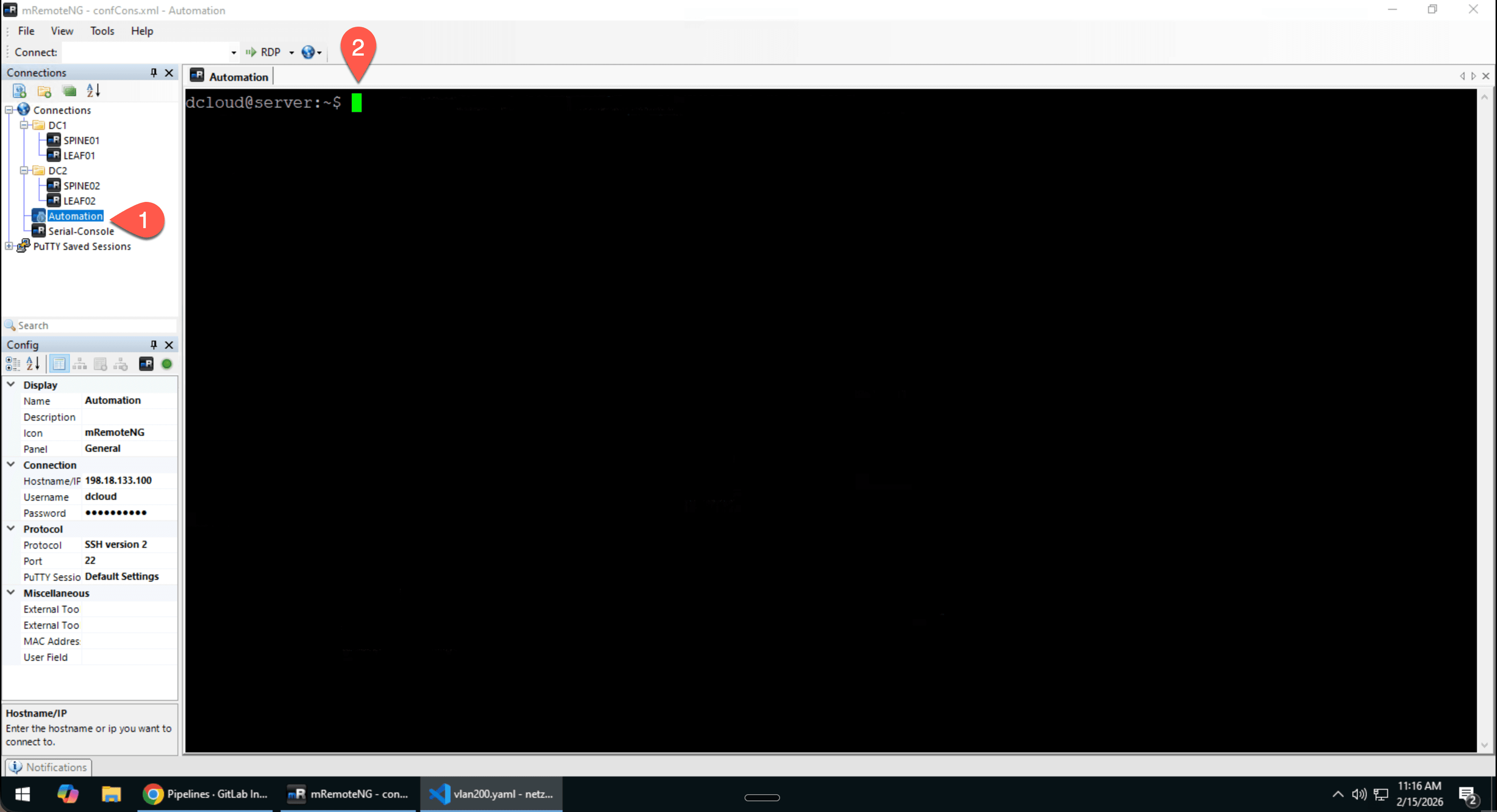
All commands and files in this and the following modules will be executed on the Linux console. We create files using vi.
Part 1: Containers vs. Virtual Machines
The Moving Boxes Analogy
Imagine you are moving. There are two strategies:
Strategy A: Take the Whole House (VM)
You do not just pack your furniture -- you take the entire house with you. Foundation, walls, roof, heating, everything. Works anywhere, but extremely heavy and slow to transport.
Strategy B: Moving Boxes (Container)
You only pack what you really need -- furniture, books, clothing. The new house (operating system) is already there. Fast, light, efficient.
Technical Architecture Comparison
The fundamental difference lies in the virtualization layer:
Comparison Table: VM vs. Container
| Property | Virtual Machine | Container |
|---|---|---|
| Startup Time | Minutes | Seconds |
| Size | Gigabytes (10-50 GB) | Megabytes (50-500 MB) |
| Resources | Fixed reservation | Dynamically shared |
| Isolation | Complete (own OS) | Process-level |
| Operating System | Any (Linux, Windows) | Shares host kernel |
| Instances per Host | 10-20 | 100-1000+ |
- VMs: When you need a different OS (Windows on Linux), complete isolation is critical, or legacy software is running
- Containers: For microservices, CI/CD pipelines, consistent development environments, and when speed matters
The Magic Behind Containers: Linux Kernel Features
Containers are not new technology -- they leverage Linux features that have existed for years:
- Namespaces: Isolate processes, network, filesystem (each container only sees "its own" system)
- cgroups: Limit CPU, RAM, I/O per container
- Union Filesystems: Enable layer-based images (only store changes)
Part 2: Understanding Docker Architecture
Docker is like a ready-meal system: There are recipes (Dockerfiles), ready-made meals in the fridge (images), and the microwave to heat them up (Docker Engine).
The Docker Components
Docker Daemon (dockerd)
The background service that creates, starts, and manages containers. Runs as a root process on the host.
Docker CLI
The command line (docker command). Communicates with the daemon via a REST API.
Docker Images
Read-only templates with all dependencies. Consist of layers -- each change is stacked as a new layer.
Container
A running instance of an image. Has a writable layer on top (discarded when deleted).
Registry
Image storage. Docker Hub (public), or private registries (GitLab Container Registry, Harbor, Nexus).
Dockerfile
Text file with build instructions for an image. Each line creates a layer.
The Docker Workflow Visualized
┌─────────────┐    docker build    ┌─────────────┐
│  Dockerfile │ ──────────────────▶ │   Image     │
└─────────────┘                     └──────┬──────┘
                                           │
                                    docker push
                                           │
                                           ▼
┌─────────────┐                     ┌─────────────┐
│  Registry   │ ◀──────────────────│ Docker Hub  │
│  (GitLab)   │     docker pull     │   / Private │
└──────┬──────┘                     └─────────────┘
       │
docker run
       │
       ▼
┌─────────────┐
│  Container  │ ◀── Running Instance
└─────────────┘
Image Layers: The Onion Principle
Images consist of layers -- like an onion. Each command in the Dockerfile creates a new layer:
┌────────────────────────────────────┐
│  Layer 5: CMD ansible-playbook     │  ← Start command
├────────────────────────────────────┤
│  Layer 4: RUN ansible-galaxy...    │  ← Collections
├────────────────────────────────────┤
│  Layer 3: RUN pip install...       │  ← Python packages
├────────────────────────────────────┤
│  Layer 2: RUN apt-get update...    │  ← System packages
├────────────────────────────────────┤
│  Layer 1: python:3.11-slim         │  ← Base image
└────────────────────────────────────┘
- Caching: Unchanged layers are reused → faster builds
- Sharing: Multiple images share the same base layers → less storage
- Best Practice: Place frequently changing commands at the end of the Dockerfile
Part 3: Mastering Docker Commands
Managing Images
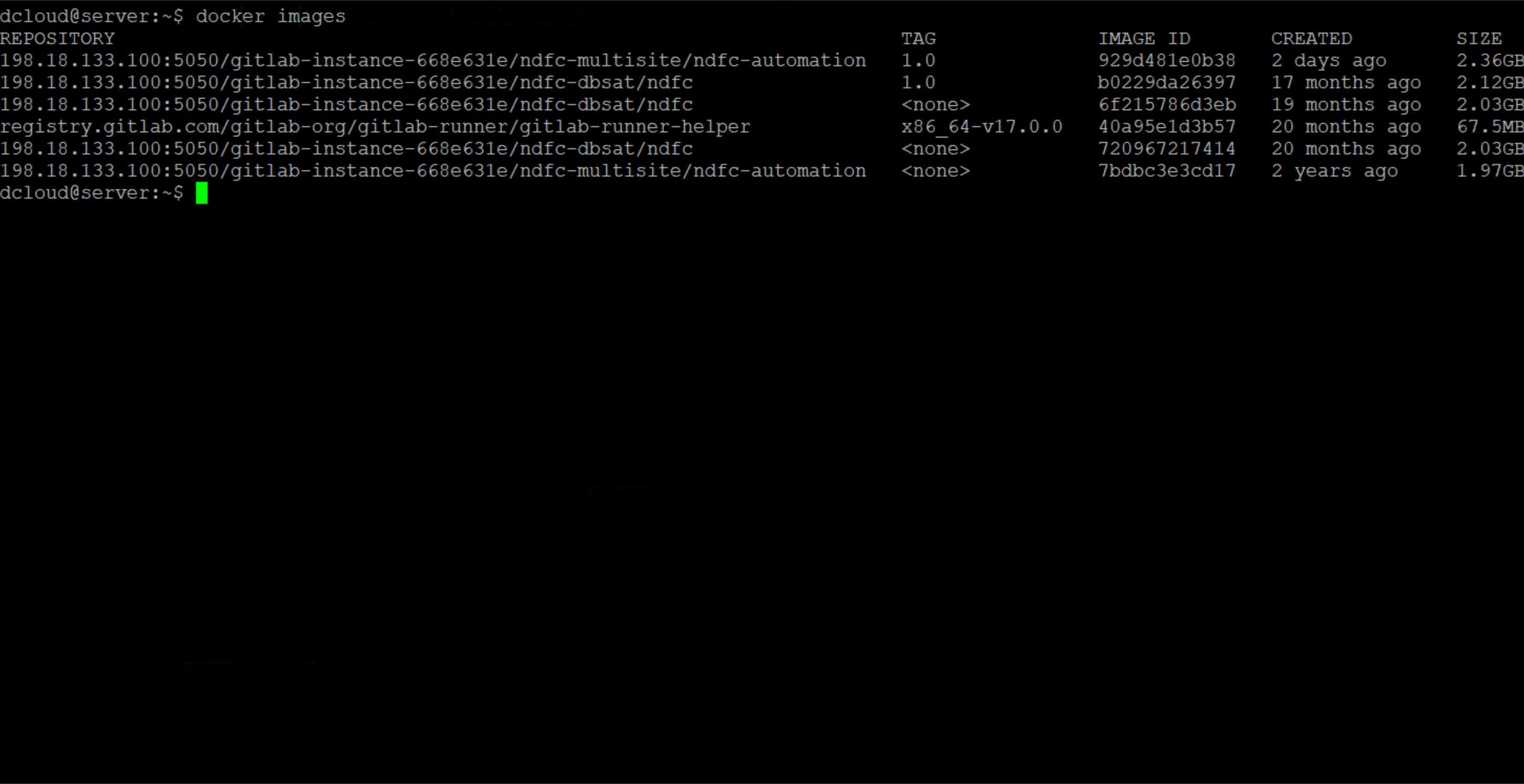
# Download image from Docker Hub
docker pull python:3.11
# With specific tag
docker pull python:3.11-slim
# Show all local images
docker images
# Delete image
docker rmi python:3.11
# Clean up unused images
docker image prune -aStarting and Managing Containers
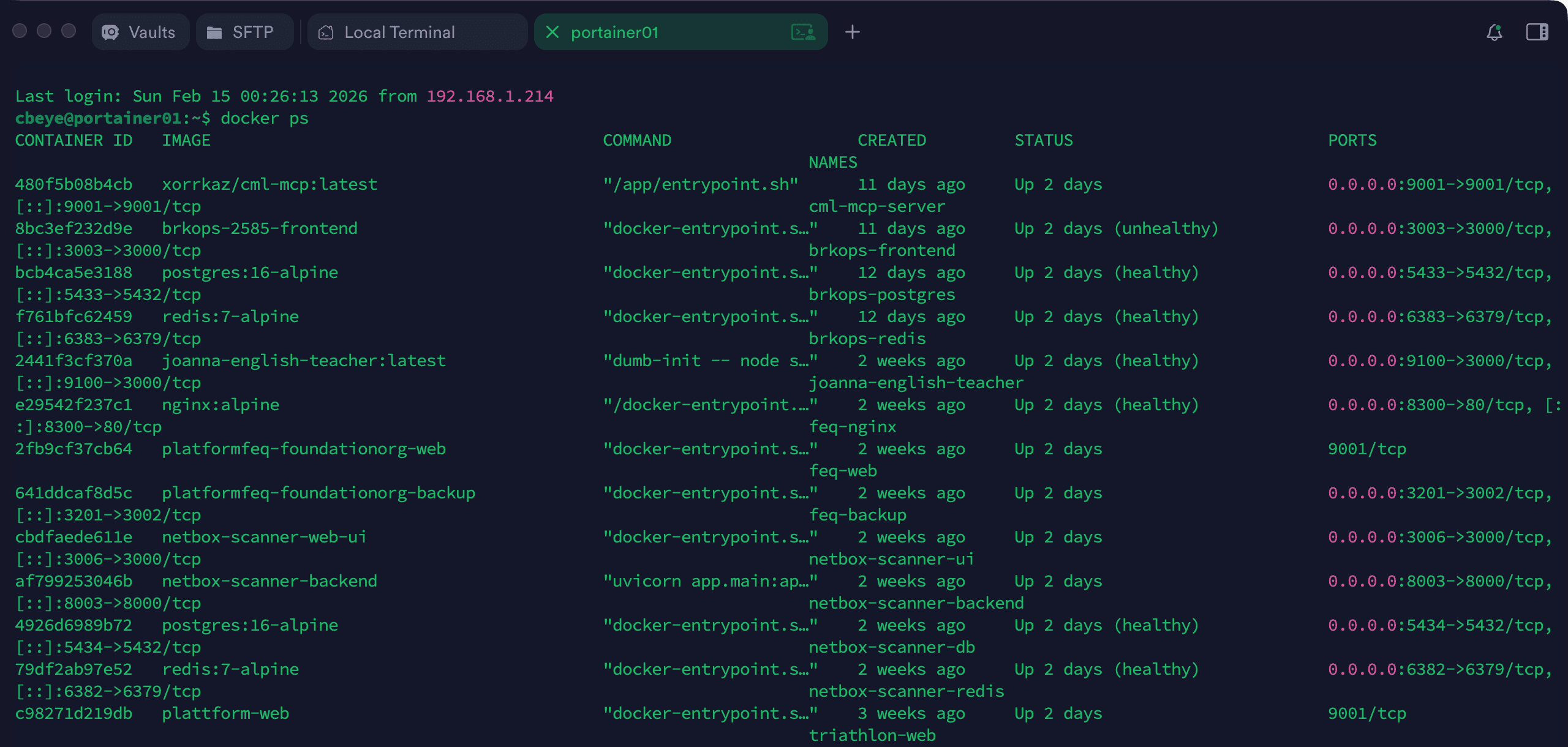
# Start container interactively (with terminal)
docker run -it python:3.11 bash
# Start container in the background
docker run -d --name my-python python:3.11 sleep infinity
# Container with automatic deletion after exit
docker run --rm -it python:3.11 python -c "print('Hello!')"
# Show running containers
docker ps
# All containers (including stopped)
docker ps -a
# Stop container
docker stop my-python
# Start container (after stop)
docker start my-python
# Delete container
docker rm my-python
# Delete all stopped containers
docker container pruneConnecting to Running Containers
# Open shell in running container
docker exec -it my-python bash
# Execute a single command
docker exec my-python cat /etc/os-release
# Log in as root (if user is different)
docker exec -it --user root my-python bashFiles and Volumes
# Mount directory into container (Bind Mount)
docker run -it -v ${PWD}:/workspace python:3.11 bash
# Create and use named volume
docker volume create my-volume
docker run -it -v my-volume:/data python:3.11 bash
# Copy file into container
docker cp local-file.txt my-python:/tmp/
# Copy file from container
docker cp my-python:/tmp/result.txt ./Networking
# Port forwarding (Host:Container)
docker run -d -p 8080:80 nginx
# Container in host network (no NAT)
docker run --network host nginx
# Create custom network
docker network create my-network
# Start container in network
docker run -d --network my-network --name web nginx
# Show networks
docker network lsGet familiar with Docker:
- Check Docker installation:
# Show version docker --version # Detailed info docker info # Run test container docker run hello-world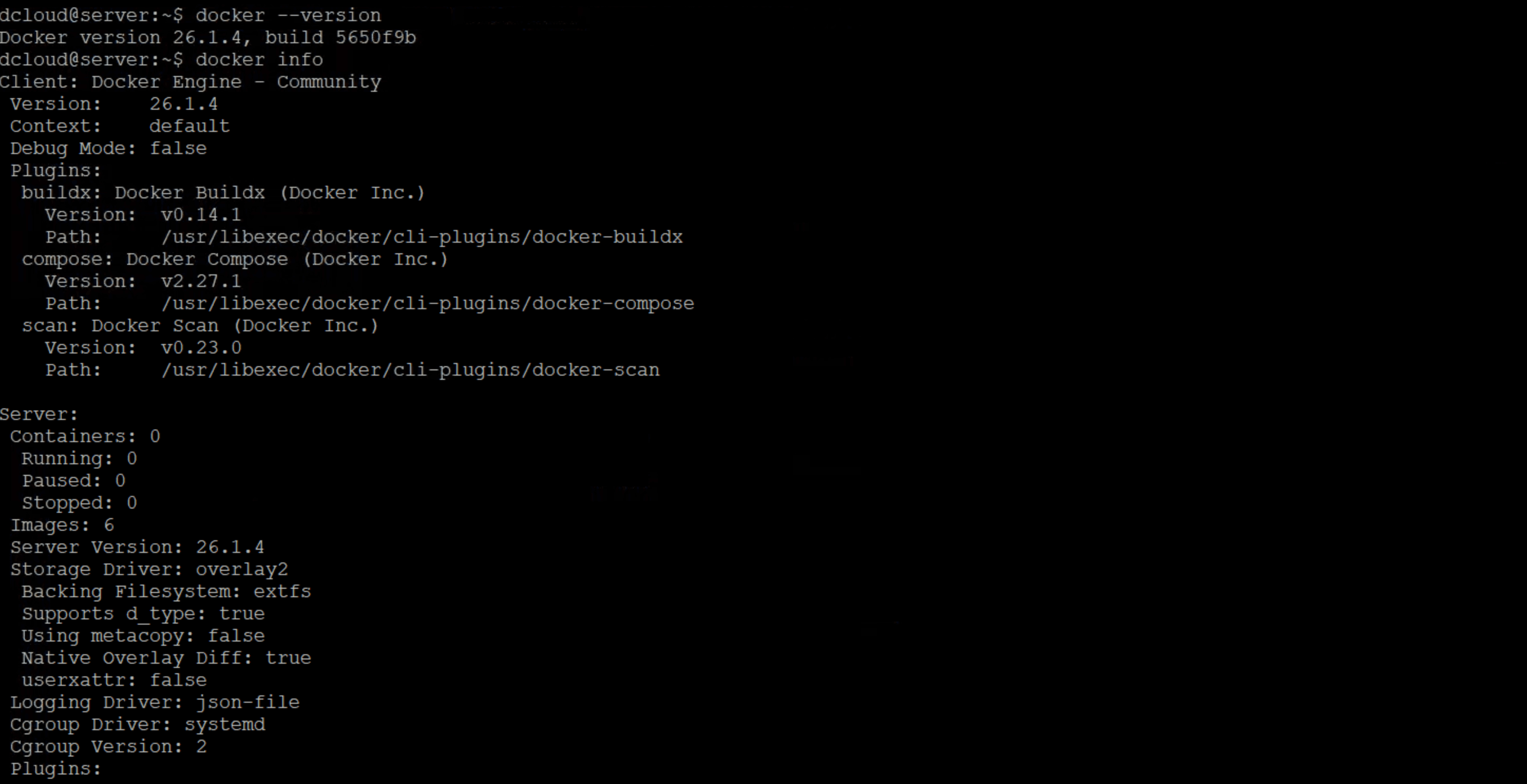 🔍 Enlarge
docker info shows details about the Docker installation and configuration - Start an interactive Ubuntu container:
# Ubuntu container with Bash docker run -it ubuntu:22.04 bash # Inside the container: explore the system cat /etc/os-release whoami pwd ls -la # Exit the container exit - Understand the container lifecycle:
# Start container in the background docker run -d --name test-container ubuntu:22.04 sleep 300 # Check status docker ps # Connect to container docker exec -it test-container bash exit # Stop and delete container docker stop test-container docker rm test-container
Part 4: Writing Dockerfiles
A Dockerfile is like a cooking recipe: Step by step, it describes how the image is built.
Dockerfile Commands
| Command | Description | Example |
|---|---|---|
| FROM | Base image | FROM python:3.11-slim |
| RUN | Execute command (during build) | RUN pip install ansible |
| COPY | Copy files into image | COPY requirements.txt /app/ |
| ADD | Like COPY, can also handle URLs/archives | ADD app.tar.gz /app/ |
| WORKDIR | Set working directory | WORKDIR /app |
| ENV | Set environment variable | ENV ANSIBLE_HOST_KEY_CHECKING=False |
| EXPOSE | Document port | EXPOSE 8080 |
| CMD | Default command (overridable) | CMD ["python", "app.py"] |
| ENTRYPOINT | Main command (not overridable) | ENTRYPOINT ["ansible-playbook"] |
Example: Python Network Tools Container
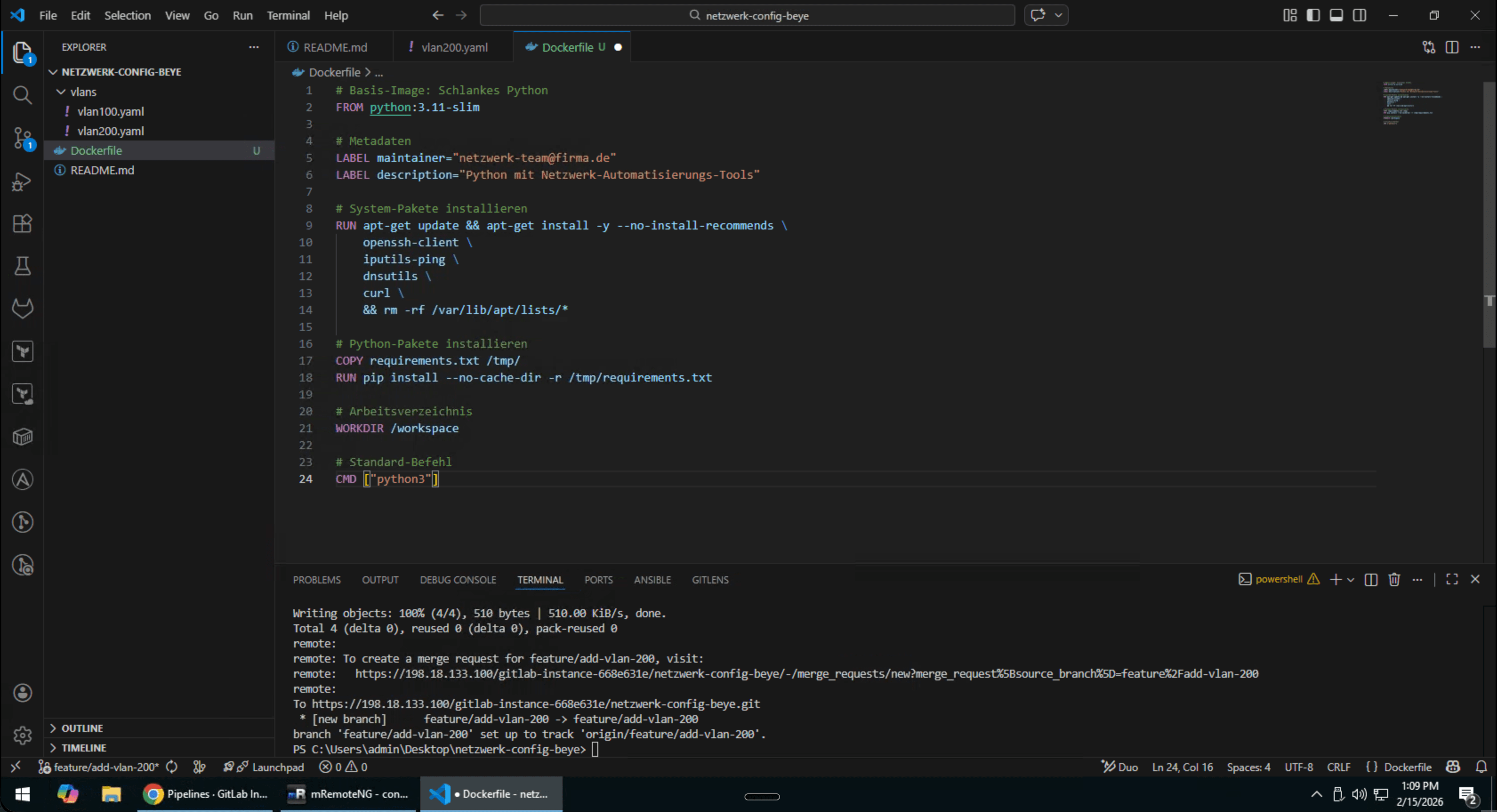
# Base image: Slim Python
FROM python:3.11-slim
# Metadata
LABEL maintainer="netzwerk-team@firma.de"
LABEL description="Python mit Netzwerk-Automatisierungs-Tools"
# Install system packages
RUN apt-get update && apt-get install -y --no-install-recommends \
openssh-client \
iputils-ping \
dnsutils \
curl \
&& rm -rf /var/lib/apt/lists/*
# Install Python packages
COPY requirements.txt /tmp/
RUN pip install --no-cache-dir -r /tmp/requirements.txt
# Working directory
WORKDIR /workspace
# Default command
CMD ["python3"]netmiko==4.2.0
napalm==4.1.0
paramiko==3.4.0
netaddr==0.9.0
jinja2==3.1.2
pyyaml==6.0.1
requests==2.31.0
nornir==3.4.1
nornir-netmiko==1.0.1Building and Tagging Images
# Build image (in directory with Dockerfile)
docker build -t network-tools:latest .
# Tag with version
docker build -t network-tools:1.0.0 .
# Tag for GitLab Registry
docker build -t 198.18.133.100:5050/workshop/network-tools:1.0.0 .
# Ignore build cache (clean build)
docker build --no-cache -t network-tools:latest .- Create project directory:
mkdir docker-netzwerk cd docker-netzwerk - Create requirements.txt:
vi requirements.txtInsert the following content (press
ito enter insert mode, then:wqto save):📄 requirements.txtnetmiko==4.2.0 netaddr==0.9.0 paramiko==3.4.0 jinja2==3.1.2 pyyaml==6.0.1 - Create Dockerfile:
vi Dockerfile📄 DockerfileFROM python:3.11-slim RUN apt-get update && apt-get install -y --no-install-recommends \ openssh-client iputils-ping \ && rm -rf /var/lib/apt/lists/* COPY requirements.txt /tmp/ RUN pip install --no-cache-dir -r /tmp/requirements.txt WORKDIR /workspace CMD ["python3"] - Build image:
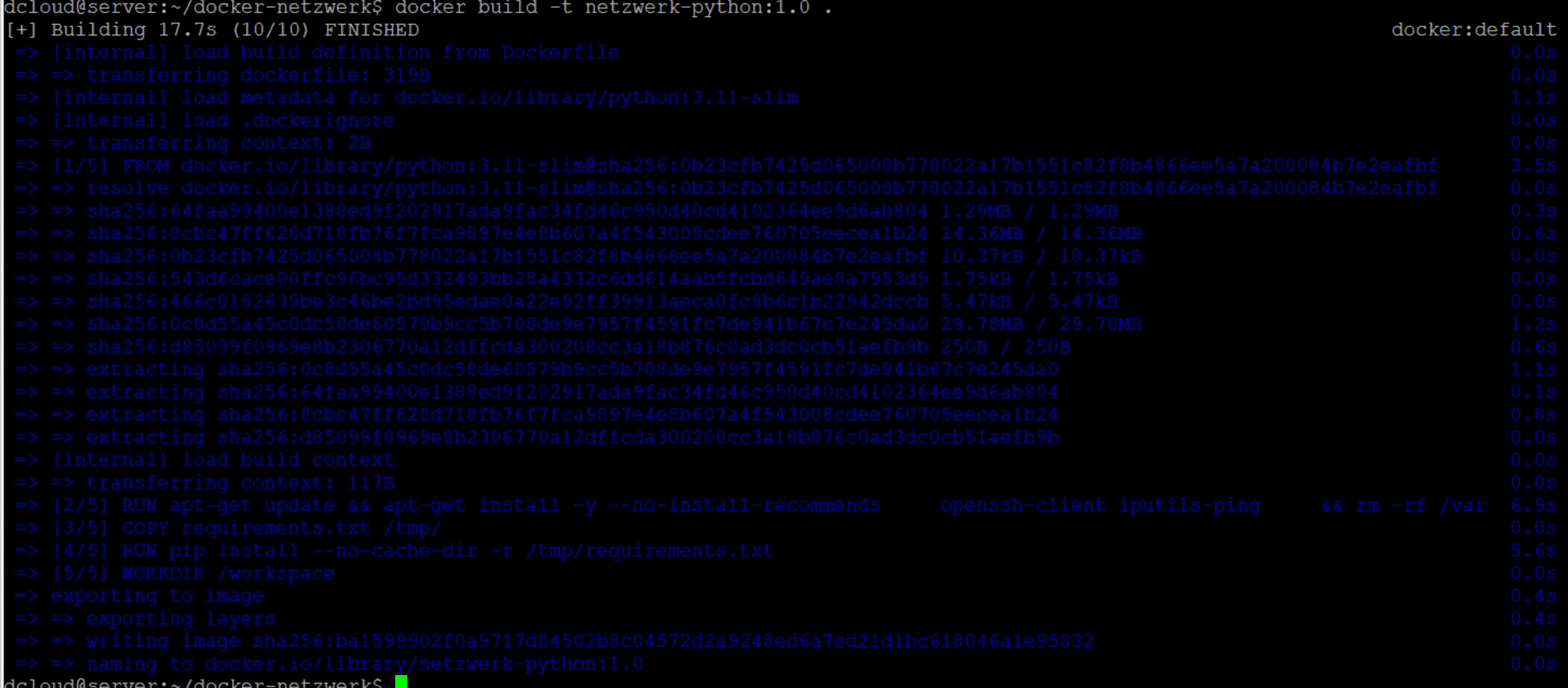
docker build -t netzwerk-python:1.0 . - Test container:
docker run -it --rm netzwerk-python:1.0📄 In the Python promptfrom netaddr import IPNetwork for ip in IPNetwork('192.168.1.0/30'): print(ip) exit()
Build a container with network analysis tools:
- Create new directory:
mkdir docker-nettools cd docker-nettoolsvi Dockerfile📄 DockerfileFROM ubuntu:22.04 LABEL maintainer="your-name" LABEL purpose="Network Troubleshooting Tools" # Avoid interactive prompts ENV DEBIAN_FRONTEND=noninteractive # Install network tools RUN apt-get update && apt-get install -y --no-install-recommends \ iputils-ping \ traceroute \ dnsutils \ netcat-openbsd \ curl \ wget \ tcpdump \ nmap \ iproute2 \ net-tools \ iperf3 \ mtr \ && rm -rf /var/lib/apt/lists/* WORKDIR /work CMD ["/bin/bash"] - Build image:
docker build -t nettools:1.0 . - Test tools:
# Start container docker run -it --rm nettools:1.0 # Inside the container: ping -c 3 8.8.8.8 dig google.com traceroute google.com exit
Part 5: Volumes and Persistent Data
Containers are ephemeral like soap bubbles -- when they are gone, the data is gone too. For persistent data you need volumes.
Three Types of Volumes
Bind Mounts
Mount a host directory directly. Good for development.
-v /host/path:/container/pathNamed Volumes
Docker-managed volumes. Portable and simple.
-v volume-name:/container/pathtmpfs Mounts
In RAM, not persistent. For temporary/sensitive data.
--tmpfs /container/path# Bind Mount: Mount local directory
docker run -it -v ${PWD}:/workspace python:3.11 bash
# Create and use named volume
docker volume create ansible-data
docker run -it -v ansible-data:/data python:3.11 bash
# Inspect volume
docker volume inspect ansible-data
# Show all volumes
docker volume ls
# Delete unused volumes
docker volume prune- Create directory:
mkdir docker-volume-test cd docker-volume-testvi hello.py📄 hello.py#!/usr/bin/env python3 from datetime import datetime from netaddr import IPNetwork print(f"=== Network Analysis Tool ===") print(f"Executed: {datetime.now()}") print() subnet = "10.100.0.0/29" print(f"Subnet: {subnet}") print("Usable IPs:") for ip in IPNetwork(subnet).iter_hosts(): print(f" - {ip}") - Run with Bind Mount:
docker run --rm -v ${PWD}:/workspace netzwerk-python:1.0 python /workspace/hello.py - Develop interactively:
# Start container, directory mounted docker run -it --rm -v ${PWD}:/workspace netzwerk-python:1.0 bash # Inside the container: edit and test script cd /workspace python hello.py # Changes are visible on the host! exit - Named Volume for persistent data:
# Create volume docker volume create test-data # Write data into it docker run --rm -v test-data:/data python:3.11 bash -c "echo 'Persistent!' > /data/test.txt" # Read data (in a new container!) docker run --rm -v test-data:/data python:3.11 cat /data/test.txt # Clean up volume docker volume rm test-data
Part 6: Ansible in a Container
Running Ansible in a container brings enormous advantages:Consistent versions, no dependency conflicts, and perfect for CI/CD pipelines.
Ansible Container Dockerfile
# Ansible Container für NDFC/Netzwerk-Automatisierung
FROM python:3.11-slim
# Labels für Wartbarkeit
LABEL maintainer="netzwerk-team@firma.de"
LABEL version="1.0"
LABEL description="Ansible mit Cisco DCNM/NDFC Collections"
# Umgebungsvariablen
ENV ANSIBLE_HOST_KEY_CHECKING=False
ENV ANSIBLE_RETRY_FILES_ENABLED=False
ENV PYTHONUNBUFFERED=1
# System-Abhängigkeiten
RUN apt-get update && apt-get install -y --no-install-recommends \
openssh-client \
sshpass \
git \
&& rm -rf /var/lib/apt/lists/*
# Python-Pakete installieren
RUN pip install --no-cache-dir \
ansible-core==2.15.* \
ansible-pylibssh \
jmespath \
netaddr \
requests \
paramiko
# Ansible Collections installieren
RUN ansible-galaxy collection install \
cisco.dcnm \
ansible.netcommon \
ansible.utils
# Arbeitsverzeichnis
WORKDIR /ansible
# Ansible-Version anzeigen beim Start
CMD ["ansible", "--version"]Build and Use the Container
# Build image
docker build -t ansible-ndfc:1.0 -f Dockerfile.ansible .
# Check Ansible version
docker run --rm ansible-ndfc:1.0
# Run playbook (with mounted files)
docker run --rm \
-v ${PWD}:/ansible \
-v $env:USERPROFILE.ssh:/root/.ssh:ro \
ansible-ndfc:1.0 \
ansible-playbook -i inventory.yml playbook.yml
# Interactive for testing
docker run -it --rm \
-v ${PWD}:/ansible \
ansible-ndfc:1.0 bash- Create Ansible container directory:
mkdir docker-ansible cd docker-ansible - Create Dockerfile:
vi Dockerfile📄 DockerfileFROM python:3.11-slim ENV ANSIBLE_HOST_KEY_CHECKING=False ENV PYTHONUNBUFFERED=1 RUN pip install --no-cache-dir \ ansible-core==2.15.* \ jmespath \ netaddr RUN ansible-galaxy collection install ansible.utils WORKDIR /ansible CMD ["ansible", "--version"]docker build -t ansible-test:1.0 . - Create test playbook:
vi playbook.yml📄 playbook.yml--- - name: Container-Test Playbook hosts: localhost connection: local gather_facts: yes vars: vlans: - id: 100 name: SERVERS - id: 200 name: CLIENTS - id: 300 name: MANAGEMENT tasks: - name: System-Informationen anzeigen ansible.builtin.debug: msg: | Ansible läuft in Container! Hostname: {{ ansible_hostname }} Python: {{ ansible_python_version }} - name: VLAN-Konfiguration generieren ansible.builtin.debug: msg: "VLAN {{ item.id }}: {{ item.name }}" loop: "{{ vlans }}" - name: IP-Berechnung mit netaddr ansible.builtin.debug: msg: "Gateway für 10.{{ item.id }}.0.0/24: 10.{{ item.id }}.0.1" loop: "{{ vlans }}" - Run playbook in container:
docker run --rm -v ${PWD}:/ansible ansible-test:1.0 ansible-playbook playbook.yml - Interactive Ansible shell:
docker run -it --rm -v ${PWD}:/ansible ansible-test:1.0 bash # Inside the container: ansible localhost -m debug -a "msg='Hello from Container!'" ansible localhost -m setup | head -50 exit
Part 7: Docker Compose
Docker Compose is like an orchestra conductor: It starts multiple containers simultaneously and coordinates them.
Why Docker Compose?
- Multi-Container Apps: Web server + database + cache simultaneously
- Declarative: YAML file describes the desired state
- Networking: Containers can reach each other by name
- Development: Start complex setups with a single command
docker-compose.yml Structure
version: '3.8'
services:
# Service 1: Web application
web:
image: nginx:alpine
ports:
- "8080:80"
volumes:
- ./html:/usr/share/nginx/html:ro
depends_on:
- api
# Service 2: API Backend
api:
build: ./api
environment:
- DATABASE_URL=postgres://db:5432/app
depends_on:
- db
# Service 3: Database
db:
image: postgres:15
environment:
POSTGRES_PASSWORD: secret
volumes:
- db-data:/var/lib/postgresql/data
volumes:
db-data:Compose Commands
# Start all services
docker compose up
# Start in the background
docker compose up -d
# Show logs
docker compose logs -f
# Check status
docker compose ps
# Connect to a service
docker compose exec web sh
# Stop everything
docker compose down
# Stop and delete volumes
docker compose down -vNetwork Automation with Compose
version: '3.8'
services:
# Ansible Automation Container
ansible:
build: .
volumes:
- ./playbooks:/ansible/playbooks
- ./inventory:/ansible/inventory
- ./group_vars:/ansible/group_vars
- $env:USERPROFILE.ssh:/root/.ssh:ro
environment:
- ANSIBLE_HOST_KEY_CHECKING=False
- NDFC_HOST=${NDFC_HOST}
- NDFC_USER=${NDFC_USER}
- NDFC_PASSWORD=${NDFC_PASSWORD}
working_dir: /ansible
command: tail -f /dev/null # Keep container alive
# Git server for local tests (optional)
gitea:
image: gitea/gitea:latest
ports:
- "3000:3000"
volumes:
- gitea-data:/data
volumes:
gitea-data:In this exercise, you will create a multi-container setup with Docker Compose -- but there will be a deliberate error built in! Use your troubleshooting skills to find and fix the problem.
- Create project directory:
mkdir compose-demo cd compose-demo - Create docker-compose.yml:
vi docker-compose.yml📄 docker-compose.ymlversion: '3.8' services: # Python Network Tools nettools: image: python:3.11-slim volumes: - ./scripts:/scripts working_dir: /scripts command: tail -f /dev/null networks: - automation-net # Web UI for documentation docs: image: nginx:alpine ports: - "8080:80" volumes: - ./docs:/usr/share/nginx/html:ro networks: - automation-net # Redis for caching (example) cache: image: redis:alpine networks: - automation-net networks: automation-net: driver: bridge - Create files for services:
mkdir scripts mkdir docsvi scripts/analyze.py📄 scripts/analyze.py#!/usr/bin/env python3 import socket print("=== Container Network Info ===") print(f"Hostname: {socket.gethostname()}") print(f"IP: {socket.gethostbyname(socket.gethostname())}") print() # Test: Reach other containers for host in ['docs', 'cache']: try: ip = socket.gethostbyname(host) print(f"{host}: {ip} ✓") except: print(f"{host}: not reachable")vi docs/index.html📄 docs/index.html<!DOCTYPE html> <html> <head><title>Automation Docs</title></head> <body> <h1>🚀 Netzwerk-Automatisierung</h1> <p>Dokumentation läuft in einem Container!</p> <ul> <li>nettools: Python mit Netzwerk-Libraries</li> <li>docs: Diese Nginx-Seite</li> <li>cache: Redis für Caching</li> </ul> </body> </html> - Start services:
docker compose up -d💥 An error occurs here!Port
8080is already in use on this machine by GitLab. Docker will output an error message that the port cannot be bound. - 🔍 Troubleshooting -- Find the problem:
Use the commands from Part 8 to diagnose the error:
# Check status — which service is not running? docker compose ps # Check logs — what does the error message say? docker compose logs docs # Which process is using port 8080? ss -tlnp | grep 8080💡 Show Solution
Problem: Port 8080 is already occupied by GitLab. The
docsservice cannot start.Solution: Change the port mapping in
docker-compose.ymlto a free port:# Stop services docker compose down # Edit docker-compose.yml: change port vi docker-compose.yml # Change "8080:80" to "8888:80" # Restart docker compose up -d # Now it should work! docker compose ps - Test services (after the fix):
# Open Web UI in browser: http://198.18.133.100:8888 # Run Python script in container docker compose exec nettools python /scripts/analyze.py # Test Redis docker compose exec cache redis-cli ping - Clean up:
docker compose down
Part 8: Docker Troubleshooting
When containers do not do what they should, these commands are your best friends:
Analyzing Container Logs
# Show logs of a container
docker logs container-name
# Live logs (like tail -f)
docker logs -f container-name
# Last 100 lines
docker logs --tail 100 container-name
# With timestamps
docker logs -t container-name
# Logs since a specific time
docker logs --since 10m container-nameInspecting Containers
# All info about a container
docker inspect container-name
# Extract specific info (IP address)
docker inspect -f '{{range .NetworkSettings.Networks}}{{.IPAddress}}{{end}}' container-name
# Show environment variables
docker inspect -f '{{range .Config.Env}}{{println .}}{{end}}' container-name
# Show mounted volumes
docker inspect -f '{{range .Mounts}}{{.Source}} -> {{.Destination}}{{println}}{{end}}' container-nameDebugging Inside a Running Container
# Open shell in container
docker exec -it container-name bash
# Or for Alpine-based images:
docker exec -it container-name sh
# Log in as root
docker exec -it --user root container-name bash
# Show processes in container
docker exec container-name ps aux
# Check network status
docker exec container-name netstat -tlnp
docker exec container-name cat /etc/resolv.confMonitoring Resource Usage

# Live statistics for all containers
docker stats
# For specific containers
docker stats container-name
# One-time (not live)
docker stats --no-streamCommon Problems and Solutions
| Problem | Diagnosis | Solution |
|---|---|---|
| Container does not start | docker logs | Check error message, often missing env vars |
| Port already in use | netstat -tlnp | Choose a different port: -p 8081:80 |
| Volume permission issue | ls -la /mount | chmod on host or --user |
| Container exits immediately | docker ps -a | Check CMD/ENTRYPOINT, process not running |
| No internet in container | docker exec ... ping 8.8.8.8 | Check Docker network or firewall |
| Image too large | docker history image | Multi-stage build, use slim image |
- Container exits immediately? Start with
tail -f /dev/nullas CMD - No shell in the container? Use
docker cpto extract files - Network issues? Test with
--network host
Part 9: Best Practices for Containers in CI/CD
Dockerfile Optimization
# ✅ GOOD: Use specific version
FROM python:3.11.7-slim-bookworm
# ✅ GOOD: Combined RUN commands (fewer layers)
RUN apt-get update && apt-get install -y --no-install-recommends \
openssh-client \
&& rm -rf /var/lib/apt/lists/*
# ✅ GOOD: Requirements first (leverage cache)
COPY requirements.txt /tmp/
RUN pip install --no-cache-dir -r /tmp/requirements.txt
# ✅ GOOD: Code last (changes often)
COPY . /app
# ✅ GOOD: Non-root user
RUN useradd -m appuser
USER appuser
# ✅ GOOD: Define HEALTHCHECK
HEALTHCHECK --interval=30s --timeout=3s \
CMD curl -f http://localhost:8080/health || exit 1Reducing Image Size
# Stage 1: Build
FROM python:3.11 AS builder
COPY requirements.txt .
RUN pip wheel --no-cache-dir --wheel-dir /wheels -r requirements.txt
# Stage 2: Runtime (slim)
FROM python:3.11-slim
COPY --from=builder /wheels /wheels
RUN pip install --no-cache-dir /wheels/*
COPY app/ /app/
CMD ["python", "/app/main.py"]Security Best Practices
✅ Do
- • Use specific image tags
- • Use non-root user
- • Secrets as env vars (not in image)
- • Update images regularly
- • Minimal base images (slim, alpine)
- • Use .dockerignore
❌ Avoid
- • latest tag in production
- • Root in container
- • Passwords in Dockerfile
- • Outdated base images
- • Installing unnecessary packages
- • SSH in container
Why Docker in CI/CD Pipelines?
Imagine: An Ansible playbook runs perfectly on a colleague's laptop, but fails on the CI/CD server. Why? Different Python version, missing libraries, different Ansible collections. Docker in pipelines solves exactly this problem.
🎯 The Core Benefits
Every pipeline run starts with a fresh container from the same image. No "leftovers" from previous runs -- no "it works on my machine".
The Dockerfile is the documentation of the environment. Python 3.11, Ansible 2.15, cisco.dcnm Collection 3.5 -- all recorded and reproducible.
Developer laptop, staging, production -- the same container everywhere. What works locally also works in the pipeline.
No pip install on every run -- everything is already in the image. Pipeline starts in seconds instead of minutes.
Every job runs in isolation. A faulty playbook cannot damage the CI/CD server -- the container is simply deleted.
New Ansible update breaks something? Simply set the image tag back to the previous version. Immediately operational again.
Monday: Pipeline runs with Ansible 2.15.3. Wednesday: Server update installs Ansible 2.16.0. Thursday: Pipeline breaks due to breaking changes in the new version. Nobody understands why -- "it was working just yesterday".
The image ansible-ndfc:1.0 always contains exactly Ansible 2.15.3. Regardless of server updates -- the container is not affected. Only when you consciously build a new image ansible-ndfc:1.1 does the environment change.
CI/CD Integration (GitLab CI)
stages:
- build
- test
- deploy
variables:
IMAGE_TAG: $CI_REGISTRY_IMAGE:$CI_COMMIT_SHORT_SHA
build-image:
stage: build
image: docker:24
services:
- docker:24-dind
script:
- docker login -u $CI_REGISTRY_USER -p $CI_REGISTRY_PASSWORD $CI_REGISTRY
- docker build -t $IMAGE_TAG .
- docker push $IMAGE_TAG
run-ansible:
stage: deploy
image: $IMAGE_TAG
script:
- ansible-playbook -i inventory.yml playbook.yml
only:
- mainDo Not Forget .dockerignore
# Git
.git
.gitignore
# IDE
.vscode
.idea
*.swp
# Python
__pycache__
*.pyc
.pytest_cache
.venv
venv
# Secrets (NEVER include in the image!)
*.pem
*.key
.env
secrets/
# Build artifacts
*.log
.coverage
htmlcov/❓ Quiz: Test Your Docker Knowledge (5 Min)
Try to answer the questions without scrolling back.
1. What is the main difference between a container and a VM?
Show Answer
A VM virtualizes the complete hardware including its own operating system (hypervisor level). A container shares the kernel of the host operating system and only isolates the process. This makes containers significantly lighter (MB instead of GB) and they start in seconds instead of minutes.
2. What is the difference between a Docker image and a container?
Show Answer
An image is a read-only template (like a blueprint). A container is a running instance of an image with an additional writable layer. Any number of containers can be started from a single image.
3. Why should you use Docker in CI/CD pipelines?
Show Answer
Docker ensures a defined state on every pipeline run. Every job starts with a fresh container -- same versions, same dependencies, no leftovers. What works locally also works in the pipeline.
4. What does the command docker run -v ${PWD}:/workspace python:3.11 bash do?
Show Answer
It starts a Python 3.11 container interactively with Bash and mounts the current directory ($PWD) as a Bind Mount under /workspace in the container. Changes to files are visible both in the container and on the host.
5. What is Docker Compose and when do you use it?
Show Answer
Docker Compose is a tool for defining and starting multi-container applicationswith a YAML file. Instead of running multiple docker run commands, you describe all services, networks, and volumes declaratively and start everything with docker compose up.
Summary
✅ What You Have Learned
- ☑️ Containers vs. VMs: Differences in architecture and application
- ☑️ Docker architecture: Daemon, CLI, images, containers, registry
- ☑️ Writing and optimizing Dockerfiles
- ☑️ Using volumes for persistent data
- ☑️ Docker Compose for multi-container setups
- ☑️ Network tools (Ansible, Python, netmiko) in containers
- ☑️ Troubleshooting: logs, exec, inspect
- ☑️ Best practices for CI/CD integration
📋 Cheat Sheet: Docker Commands
In the next module, you will learn how containers are used in CI/CD pipelines. There we will build automated workflows that use Ansible containers to deploy network configurations.