📝 Module 2: Version Control with Git
⏱️ Duration: approx. 90 Minutes
Learning Objectives: You will understand Git architecture (Working Directory, Staging, Repository), be able to work with branches, resolve merge conflicts, analyze Git history, and know proven branching strategies for network environments.
In this workshop, you are working on a Windows VM. Please note:
- Open a terminal in VS Code via Terminal → New Terminal (PowerShell)
- You are working in PowerShell on Windows
- Creating/editing files: Use the VS Code Editor (create new file, type content, save)
- Git commands: Are executed in the PowerShell terminal
📚 Contents of This Module
- 1. What is Git?
- 2. The Three Zones of Git
- 3. Essential Git Commands
- 4. Branching Strategies
- 5. Understanding Merge Conflicts
- 6. Git History & Logs
- 7. Hands-on Exercises (6 total)
- 8. Cheat Sheet & Troubleshooting
1. What is Git?
Think of Git as save points in a video game. You can save at any time, and if something goes wrong, you simply load a previous save. Only much better: Git saves ALL save points, not just the last one.
Why Git for Network Configurations?
In the classic networking world, everyone knows the problem: "Who changed the switch port last night?" With Git, that is a thing of the past.
- Complete History: Who made which change when – and why?
- Rollback in Seconds: Last change was a mistake? One command, everything is fine again.
- Parallel Work: Three people, three features, zero conflicts
- Automatic Backup: Your code is safe on a server (GitLab, GitHub)
- Code Review: Four-eyes principle before production
- Audit Trail: Indispensable for compliance
- switch-config_v2_final_FINAL.txt
- switch-config_backup_jan_new.txt
- "Who changed that?!"
- Rollback = Panic
- One file, complete history
- Every change documented
- git blame → instantly visible
- git revert → 5 seconds
2. Understanding the Three Zones of Git
Before we start with the commands, you need to understand how Git works internally. Think of Git as a construction site with three areas:
┌─────────────────────────────────────────────────────────────────────────┐
│                        GIT - The Three Zones                             │
├─────────────────────────────────────────────────────────────────────────┤
│                                                                          │
│   ┌─────────────────┐    git add     ┌─────────────────┐    git commit  │
│   │                 │ ─────────────> │                 │ ─────────────> │
│   │    WORKING      │                │    STAGING      │                │
│   │   DIRECTORY     │                │     AREA        │                │
│   │                 │ <───────────── │    (Index)      │                │
│   │  📁 Your Files  │   git restore  │  📋 Prepared    │                │
│   └─────────────────┘                └─────────────────┘                │
│          │                                                               │
│          │                                    │                          │
│          │                                    │                          │
│          │                                    ▼                          │
│          │                          ┌─────────────────┐                 │
│          │                          │                 │                 │
│          │                          │   REPOSITORY    │                 │
│          │  <───────────────────────│    (.git)       │                 │
│          │       git checkout       │                 │                 │
│                                     │  💾 History     │                 │
│                                     └─────────────────┘                 │
│                                                                          │
└─────────────────────────────────────────────────────────────────────────┘
Working Directory
The construction site: This is where you work! All the files you can see and edit. Changes here are not yet saved.
Analogy: The desk where you are currently working.
Staging Area (Index)
The shopping cart: This is where you collect changes that should be committed together. Like a shopping cart before checkout.
Analogy: The tray before taking a photo – you arrange first, then snap.
Repository (.git)
The archive: All commits, the entire history. Everything is safely stored here – forever.
Analogy: The video game archive with all save states.
You edit files in the Working Directory, stage them for the next commit, and commit them to the repository. Only then is the change truly saved!
Example: A Change Through All Zones
# 1️⃣ You edit a file in VS Code (Working Directory)
# Open switch-config.yaml in VS Code and edit it
# 2️⃣ Status shows: File was changed (red = not staged)
git status
# modified: switch-config.yaml (red)
# 3️⃣ Move file to the Staging Area
git add switch-config.yaml
# 4️⃣ Status shows: File is ready to commit (green = staged)
git status
# modified: switch-config.yaml (green)
# 5️⃣ Create commit (off to the repository!)
git commit -m "Configured VLAN 100 on switch"
# 6️⃣ Status shows: All clean
git status
# nothing to commit, working tree clean3. Essential Git Commands
3.1 Creating or Cloning a Repository
Two ways to get a repository:
# Option A: Clone an existing repository
git clone https://gitlab.local/netzwerk/fabric-config.git
cd fabric-config
# Option B: Create a new repository
mkdir my-project
cd my-project
git init3.2 Tracking Changes and Committing
The daily workflow:
# Show status - what has changed?
git status
# Stage all changes for the next commit
git add .
# Or only specific files
git add fabric.yaml
git add configs/spine-1.yaml
# Or with wildcards
git add *.yaml
# Remove changes from the Staging Area (without deleting the file!)
git restore --staged fabric.yaml
# Create a commit with a meaningful message
git commit -m "Added VLAN 100 for production"
# Upload changes to the server
git pushThe commit message should explain what and why something was changed:
- "Update"
- "Fix"
- "Changes"
- "asdf"
- "Added VLAN 100 for production servers"
- "Configured BGP peer to ISP2 (AS65002)"
- "Adjusted MTU to 9000 for jumbo frames"
- "Fixed typo in Spine-1 hostname"
3.3 Fetching Changes from the Server
# Fetch and integrate the latest changes from the server
git pull
# Only fetch information (without merging)
git fetch
# What has changed on the server?
git log origin/main --oneline -5Before you git push, always git pull first! Otherwise you risk conflicts if someone else has pushed changes in the meantime.
4. Understanding Branching Strategies
Branches are like construction zones on a highway: Traffic (production) keeps flowing while you calmly work on the side. Only when the construction is done, the new lane is opened.
4.1 Creating and Switching Branches
# List all branches
git branch
# Create a new branch
git branch feature/vlan-200
# Switch to a branch
git checkout feature/vlan-200
# OR: Create and switch at once (recommended!)
git checkout -b feature/vlan-200
# Newer alternative (from Git 2.23):
git switch -c feature/vlan-200
# Switch back to the main branch
git checkout main
# Delete a branch (after it has been merged)
git branch -d feature/vlan-200
# Force delete a branch (even without merge)
git branch -D feature/vlan-2004.2 Branching Strategy: GitFlow vs. Trunk-Based
There are two common strategies for network teams. The choice depends on your team size and change frequency:
🌳 GitFlow
Multiple long-lived branches for different environments.
- Clear separation: Dev/Test/Prod
- Good for release cycles
- Easy rollback
- Complex with many branches
- Long lifetimes = merge hell
🎯 Trunk-Based Development
One main branch, short-lived feature branches.
- Simple and fast
- Fewer merge conflicts
- Ideal for CI/CD
- Requires good tests
- Feature flags sometimes needed
For most network teams, we recommend Trunk-Based Development:
- Create a feature branch (max. 1-2 days lifetime)
- Small, focused changes
- Quick merge request + review
- CI/CD pipeline validates automatically
GitFlow only makes sense if you have strict release cycles (e.g., monthly rollouts).
4.3 Branch Naming Conventions
Consistent names make collaboration easier:
5. Understanding and Resolving Merge Conflicts
A merge conflict occurs when two people have changed the same line in the same file. Git cannot automatically decide which version is correct – you need to help.
5.1 How a Conflict Occurs
Situation:

Alice (main):        Bob (feature/vlan):
─────────────        ───────────────────
vlan_id: 100         vlan_id: 200     ← Same line!
name: Prod           name: Dev

When merging: 💥 CONFLICT!
Git doesn't know: 100 or 200?
5.2 Detecting a Conflict
# Attempt to merge
git merge feature/vlan-200
# Output on conflict:
# Auto-merging fabric.yaml
# CONFLICT (content): Merge conflict in fabric.yaml
# Automatic merge failed; fix conflicts and then commit the result.
# Status shows:
git status
# both modified: fabric.yaml5.3 Conflict in the File
This is what a conflict looks like in the file:
vlans:
<<<<<<< HEAD
- id: 100
name: Production
=======
- id: 200
name: Development
>>>>>>> feature/vlan-200The Conflict Markers Explained:
<<<<<<< HEAD– Start of your current version (main)=======– Separator between the versions>>>>>>> feature/vlan-200– End of the other version
5.4 Resolving a Conflict
You have three options:
# Option 1: Keep ONLY your version
vlans:
- id: 100
name: Production
# Option 2: Keep ONLY the other version
vlans:
- id: 200
name: Development
# Option 3: COMBINE both (usually the best solution!)
vlans:
- id: 100
name: Production
- id: 200
name: DevelopmentAfter editing:
# Conflict is resolved - stage the file
git add fabric.yaml
# Complete the merge
git commit -m "Merge feature/vlan-200: Keep both VLANs"
# Push
git push- Small, focused commits (less overlap)
- Regularly run
git pull - Short branch lifetimes
- Communicate with the team: "I'm working on fabric.yaml!"
6. Understanding Git History and Logs
Git history is your record of all changes. Used correctly, it answers questions like: "Who changed that?", "When was that introduced?" and "What was the reason?"
6.1 git log – Searching the History
# Simple history (compact)
git log --oneline
# a1b2c3d Added VLAN 100
# d4e5f6g Configured BGP peer
# 7h8i9j0 Initial commit
# Last 5 commits with details
git log -5
# Nice graphical view
git log --oneline --graph --all
# Filter by author
git log --author="alice" --oneline
# Filter by date
git log --since="2024-01-01" --until="2024-01-31"
# Search by keyword in commit message
git log --grep="VLAN" --oneline
# Changes to a specific file
git log --oneline -- fabric.yaml
# With diff (what was changed?)
git log -p -2 # Last 2 commits with changes6.2 git diff – Showing Differences
# Unstaged changes vs. last version
git diff
# Staged changes vs. last version
git diff --staged
# Difference between two commits
git diff a1b2c3d d4e5f6g
# Difference between branches
git diff main feature/vlan-200
# Show only file names (not the content)
git diff --name-only main feature/vlan-200
# Changes to a specific file
git diff fabric.yaml6.3 git blame – Who Wrote This Line?
The most powerful tool for debugging: Shows for each line who last changed it.
# Blame for a file
git blame fabric.yaml
# Output:
# a1b2c3d (Alice 2024-01-15 10:30) vlans:
# a1b2c3d (Alice 2024-01-15 10:30) - id: 100
# d4e5f6g (Bob 2024-01-16 14:22) name: Production ← Bob changed this!
# 7h8i9j0 (Alice 2024-01-15 10:30) - id: 200
# Only specific lines (10-20)
git blame -L 10,20 fabric.yaml
# Ignore whitespace changes
git blame -w fabric.yamlDespite the name, git blame is not about assigning blame! It is a tool to find out who you can ask about the "why" of a change. That person best knows what they were thinking.
6.4 git show – Details About a Commit
# Details of the last commit
git show
# Details of a specific commit
git show a1b2c3d
# Only the changed file names
git show --stat a1b2c3d
# Show a specific file from an old commit
git show a1b2c3d:fabric.yaml6.5 Undoing Changes
# Discard local changes (not staged)
git restore fabric.yaml
# Move staged changes back to Working Directory
git restore --staged fabric.yaml
# Undo last commit (keeps changes)
git reset --soft HEAD~1
# Completely delete last commit (changes gone!)
git reset --hard HEAD~1
# "Reverse" a commit (new commit that undoes the old change)
git revert a1b2c3d
# ☝️ Safe for shared branches! Creates a new commit.git reset– Changes the history. Never use on shared branches!git revert– Creates a new commit. Safe for shared branches.
Rule of thumb: Anything you have pushed, only undo with revert!
7. Hands-on Exercises
Now it gets practical! The following 6 exercises are split into two phases:
📋 Phase 1: Local Git (Exercises 1-3)
Practice Git basics on the console – everything local on your desktop, no server needed.
🌐 Phase 2: GitLab Integration (Exercises 4-6)
Collaboration with GitLab – push, pull, merge requests and team workflows.
Run these commands once in the PowerShell terminal:
git config --global user.name "Your Name"
git config --global user.email "your.email@company.com"
git config --global http.sslVerify falseThe last line is necessary because our GitLab server uses a self-signed SSL certificate.
Run these commands once in the PowerShell terminal:
git config --global user.name "Your Name"
git config --global user.email "your.email@company.com"
git config --global http.sslVerify falseThe last line is necessary because our GitLab server uses a self-signed SSL certificate.
📋 Phase 1: Local Git on the Console
Create a local Git repository on the desktop and make your first commits.
- Open VS Code and start a terminal:
Open VS Code via the desktop icon. Then open a terminal via the menu: Terminal → New Terminal (or keyboard shortcut
Ctrl+`). A PowerShell terminal appears at the bottom where you can run all Git commands.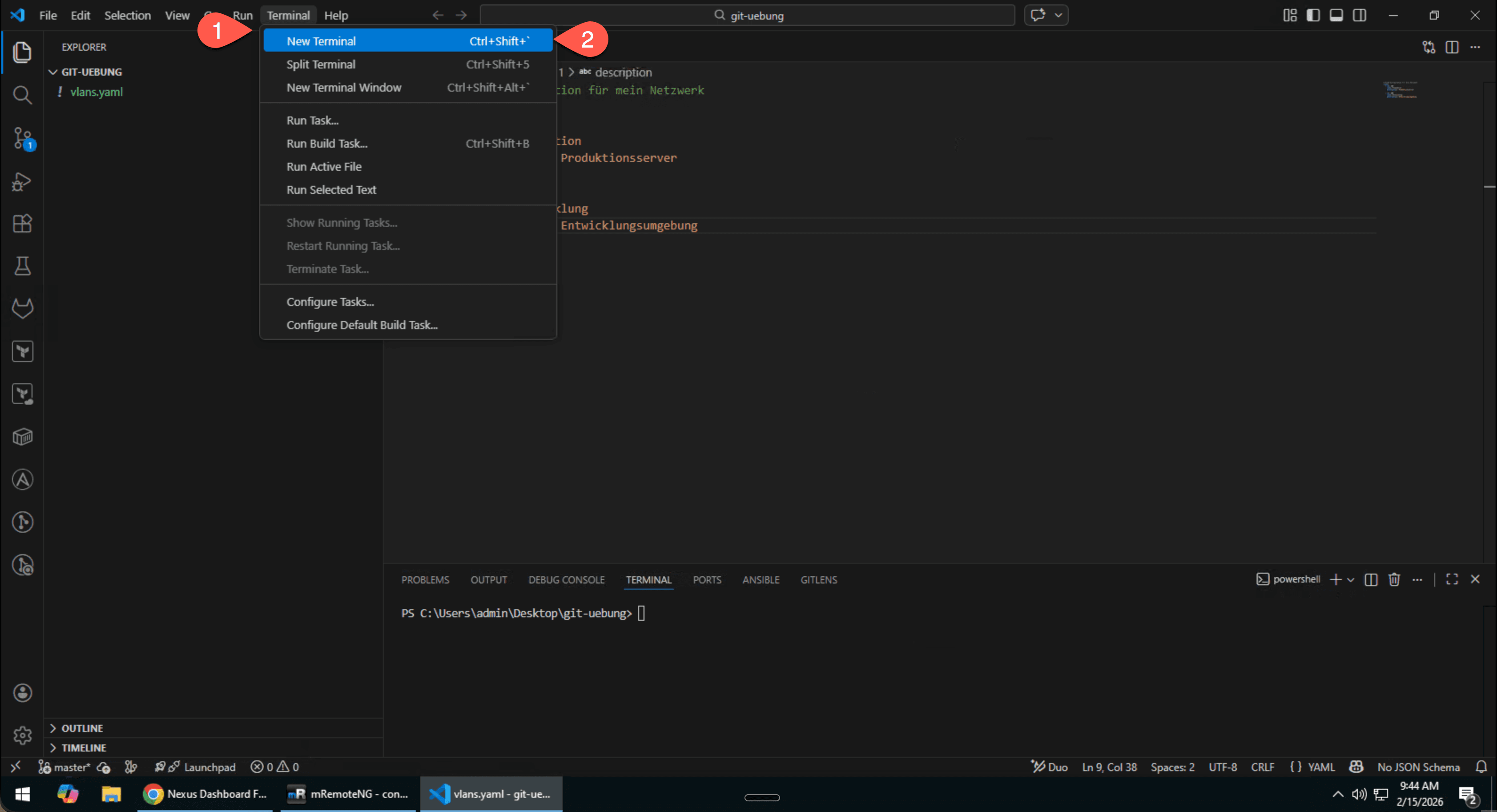 🔍 Enlarge
VS Code: Open terminal via Terminal → New Terminal - Navigate to the desktop and create a folder:📄 PowerShell
cd ~\Desktop mkdir git-exercise cd git-exercise - Initialize a Git repository:📄 PowerShell
git init # Explore the repository git status # Which branch? (should be main or master) git branch - Open the folder in VS Code and create the first file:
First, open the created folder in VS Code: File → Open Folder and navigate to
Desktop\git-exercise. Click "Select Folder".Now you can see the empty folder in the sidebar on the left. Create a new file by clicking the 📄 New File icon in the sidebar (or
Ctrl+N) and save the file asvlans.yaml. Enter the following content: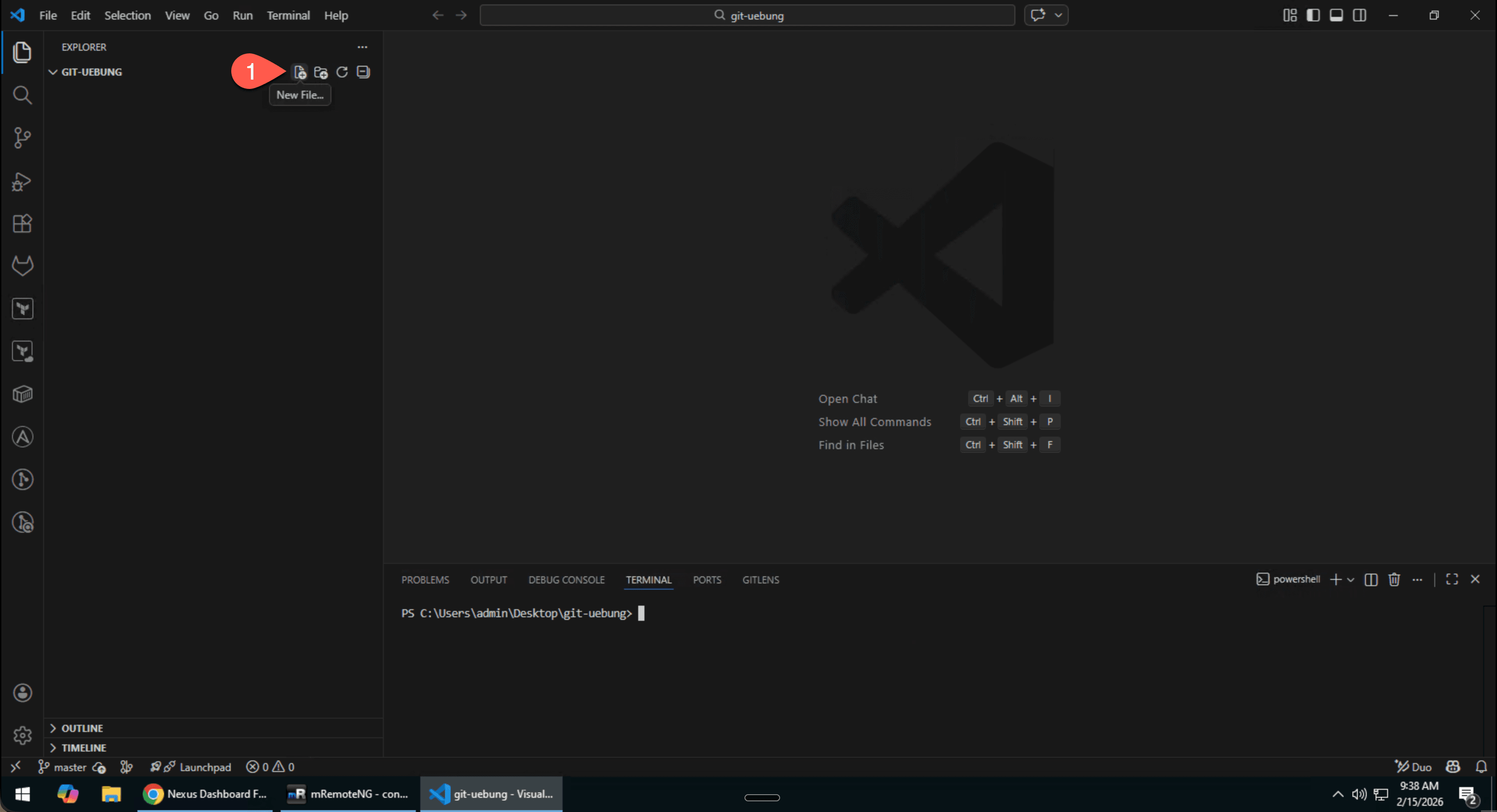 🔍 Enlarge
VS Code: Open folder and create a new file 📄 vlans.yaml# VLAN configuration for my network vlans: - id: 100 name: Production description: Production servers - id: 200 name: Development description: Development environment - Check status – file is "untracked":📄 PowerShell
git status # Untracked files: # vlans.yaml - Stage and commit the file:📄 PowerShell
git add vlans.yaml git status # Changes to be committed: # new file: vlans.yaml (green!) git commit -m "Added VLAN configuration: Prod + Dev" # Success message: # [main abc1234] Added VLAN configuration: Prod + Dev # 1 file changed, 11 insertions(+) - View the history:📄 PowerShell
git log --oneline git log
git log shows your first commit.Create a feature branch, work in it, and merge it back.
- Create a new branch:📄 PowerShell
# Create branch AND switch to it git checkout -b feature/vlan-300 # Check which branch we are on git branch # * feature/vlan-300 # master - Make a change in the new branch:
Open
vlans.yamlin VS Code and add the following at the end:📄 vlans.yaml (add at the end)- id: 300 name: Guests description: Guest network with internet access - Commit:📄 PowerShell
git add vlans.yaml git commit -m "Added VLAN 300 for guests" - Switch back to the master branch and check:📄 PowerShell
git checkout master # Check: VLAN 300 is NOT here yet! Get-Content vlans.yaml - Merge the feature branch:📄 PowerShell
git merge feature/vlan-300 # Output: # Updating abc1234..def5678 # Fast-forward # vlans.yaml | 4 ++++ # 1 file changed, 4 insertions(+) - Check the result and clean up:📄 PowerShell
# Now VLAN 300 is also in main! Get-Content vlans.yaml # Log shows the merge git log --oneline # Delete the feature branch git branch -d feature/vlan-300
This exercise simulates a real merge conflict – the most important exercise!
- Make sure you are on master:📄 PowerShell
git checkout master - Create Branch A – Alice sets MTU to 9000:📄 PowerShell
git checkout -b feature/mtu-change-aliceCreate a new file
interfaces.yamlin VS Code with the following content:📄 interfaces.yamlinterfaces: Ethernet1: description: Uplink to Spine mtu: 9000📄 PowerShellgit add interfaces.yaml git commit -m "Set MTU to 9000 (jumbo frames)" - Switch back to master and create Branch B – Bob wants MTU 1500:📄 PowerShell
git checkout master git checkout -b feature/mtu-change-bobCreate the file
interfaces.yamlin VS Code (it does not exist on this branch yet!) with the following content:📄 interfaces.yamlinterfaces: Ethernet1: description: Uplink to Spine mtu: 1500📄 PowerShellgit add interfaces.yaml git commit -m "Keep MTU at standard 1500" - Merge Alice first (no problem):📄 PowerShell
git checkout master git merge feature/mtu-change-alice # ✅ Fast-forward, all good - Merge Bob → CONFLICT!📄 PowerShell
git merge feature/mtu-change-bob # 💥 CONFLICT (content): Merge conflict in interfaces.yaml # Automatic merge failed; fix conflicts and then commit. git status # both modified: interfaces.yaml - View and resolve the conflict:
Open
interfaces.yamlin VS Code. You will see the conflict markers. VS Code offers buttons like "Accept Current Change", "Accept Incoming Change" or "Accept Both Changes". Choose MTU 9000 – remove the conflict markers and keep:📄 interfaces.yamlinterfaces: Ethernet1: description: Uplink to Spine mtu: 9000 - Complete the merge:📄 PowerShell
git add interfaces.yaml git commit -m "Merge: Keep MTU 9000 (jumbo frames required)" - Clean up:📄 PowerShell
git branch -d feature/mtu-change-alice git branch -d feature/mtu-change-bob # View the history with the merge git log --oneline --graph --all
🌐 Phase 2: GitLab Integration
For the following exercises, you will use the GitLab server:
- URL:
https://198.18.133.100/ - Username:
root - Password:
C1sco12345
⚠️ The browser will show a security warning (self-signed certificate). Click on "Advanced" → "Proceed to 198.18.133.100".
Create a project in GitLab and connect your local repository to it.
- Log into GitLab and create a new project:
- Open
https://198.18.133.100/in the browser - Login with
root/C1sco12345 - Click on "New project" → "Create blank project"
- Project name:
netzwerk-config - Deactivate "Initialize repository with a README" (we already have a local repo!)
- Click on "Create project"
- Open
- Connect local repository with GitLab:📄 PowerShell
# Make sure you are in your local repo cd ~\Desktop\git-exercise # Add GitLab as remote git remote add origin https://198.18.133.100/gitlab-instance-668e631e/netzwerk-config.git # Check if remote is configured git remote -v - Push local commits to GitLab:📄 PowerShell
git push -u origin master # On the first push, you will be prompted for username and password: # Username: root # Password: C1sco12345 - Verify in GitLab:
Switch to the browser and reload the project page. You should now see your files (
vlans.yaml,interfaces.yaml) and all commits!
Practice the workflow with GitLab: push changes and verify in the browser.
- Create a new branch and push a change:📄 PowerShell
git checkout -b feature/bgp-configCreate a new file
bgp.yamlin VS Code with the following content:📄 bgp.yaml# BGP configuration bgp: local_as: 65001 router_id: 10.0.0.1 neighbors: - peer: 10.0.0.2 remote_as: 65002 description: ISP Uplink📄 PowerShellgit add bgp.yaml git commit -m "Added BGP configuration for ISP uplink" # Push branch to GitLab git push -u origin feature/bgp-config - Verify in GitLab:
- Switch to GitLab in the browser
- In the project, you can now see the branch
feature/bgp-config - Click on the branch and see the
bgp.yamlfile - Check the history under "Repository → Commits"
- Switch back to master and merge:📄 PowerShell
git checkout master git merge feature/bgp-config git push # Clean up git branch -d feature/bgp-config git push origin --delete feature/bgp-config - Verify in GitLab:
Reload the project page in GitLab. The
bgp.yamlshould now be visible in themasterbranch. The feature branch is deleted.
bgp.yaml is visible in the master branch on GitLab and the feature branch is deleted.Create a Merge Request (MR) – the professional way to integrate changes. In real teams, changes are never merged directly, but always through an MR with review.
- Create a feature branch and make a change:📄 PowerShell
git checkout -b feature/monitoringCreate a new file
monitoring.yamlin VS Code with the following content:📄 monitoring.yaml# Monitoring configuration monitoring: snmp: community: public version: 2c targets: - 10.0.0.1 - 10.0.0.2 syslog: server: 10.0.100.50 port: 514 level: informational📄 PowerShellgit add monitoring.yaml git commit -m "Monitoring configuration: SNMP + Syslog" # Push branch to GitLab git push -u origin feature/monitoring - Create a Merge Request in GitLab:
- Switch to GitLab in the browser
- GitLab shows a banner at the top: "Create merge request" – click on it
- Alternatively: In the left menu "Merge requests" → "New merge request"
- Source Branch:
feature/monitoring - Target Branch:
master - Title:
Add monitoring configuration - Description:
Adds SNMP and Syslog monitoring configuration - Click on "Create merge request"
- Review the Merge Request:
- In the MR, you can see the "Changes" tab – all changes are visible here
- You can add comments to individual lines (code review!)
- The "Commits" tab shows all commits in this MR
- Merge the Merge Request:
- Click the "Overview" tab at the top
- Click the blue "Merge" button
- Optional: Enable "Delete source branch" (recommended!)
- After the merge, the change is in the
masterbranch
- Update locally:📄 PowerShell
git checkout master git pull # Check: monitoring.yaml should now be there dir Get-Content monitoring.yaml # Clean up the local branch git branch -d feature/monitoring
git pull.8. Cheat Sheet & Troubleshooting
📋 Git Cheat Sheet – Complete Overview
Basic Commands
Branches
History
Undoing Changes
🔥 Common Errors and Solutions
You are not in a Git folder.
Someone pushed changes that you do not have yet.
The server has newer commits than you.
You want to switch branches but have unsaved changes.
Two changes to the same location.
Self-signed certificate on the GitLab server.
A commit on the server needs to be undone.
⚠️ Do NOT use git reset on shared branches!
⚡ Save Time: Set Up Git Aliases
Run these commands in the PowerShell terminal to configure shortcuts:
# Shortcuts
git config --global alias.st status
git config --global alias.co checkout
git config --global alias.br branch
git config --global alias.ci commit
# Pretty logs
git config --global alias.lg "log --oneline --graph --all"
git config --global alias.last "log -1 HEAD"
# Branch overview
git config --global alias.branches "branch -a"
# Who did what?
git config --global alias.who "shortlog -sne"Usage: git st instead of git status, git lg for pretty logs, etc.
❓ Quiz: Test Your Git Knowledge (5 Min)
Try to answer the questions without scrolling back.
1. What are the three zones of Git and what happens in each?
Show Answer
Working Directory: This is where you edit your files.
Staging Area: This is where you collect changes for the next commit (git add).
Repository: This is where commits are permanently stored (git commit).
2. What is the difference between git add and git commit?
Show Answer
git add moves changes to the Staging Area (preparation).git commit saves the contents of the Staging Area as a new snapshot in the repository.
3. Why should you write meaningful commit messages?
Show Answer
So that colleagues (and yourself in 6 months) can understand why a change was made. Good messages describe the "what" and "why", not the "how". Example: fix: Corrected VLAN 100 on Leaf-3 (wrong interface)
4. What does git log --oneline do?
Show Answer
Shows the commit history in compact form — one commit per line with a short hash and message. Ideal for a quick overview of the latest changes.
5. How can you undo a change that you have not yet committed?
Show Answer
With git checkout -- filename or git restore filename, the file is reset to the state of the last commit. Already staged changes must first be unstaged withgit restore --staged filename.
Summary
✅ What You Learned
Concepts
- ☑️ The three zones: Working Dir, Staging, Repository
- ☑️ Branches as parallel development lines
- ☑️ GitFlow vs. Trunk-Based Development
- ☑️ How merge conflicts arise and are resolved
Practical Skills
- ☑️ Create and explore a local repository
- ☑️ Commit and push changes
- ☑️ Create, switch, and merge branches
- ☑️ Analyze history with log, diff, blame
- ☑️ Detect and resolve conflicts
- ☑️ GitLab: Push, Pull, Merge Requests
In the next module, you will learn about GitLab – the platform that extends Git with merge requests, CI/CD pipelines, and collaboration features. There, we will put together everything you have learned here!