🦊 Module 3: GitLab for Network Teams
Learning Objectives: You will be able to manage GitLab projects, create Merge Requests, perform Code Reviews, and understand how CI/CD pipelines work.
⏱️ Duration: approx. 105 minutes (incl. 7 hands-on exercises)
📋 Table of Contents
- 1. What is GitLab?
- 2. The GitLab Interface in Detail
- 3. Projects and Groups
- 4. Protected Branches
- 5. Merge Request Workflow
- 6. Code Review Best Practices
- 7. Issues and Boards
- 8. CI/CD Pipeline Fundamentals
1. What is GitLab?
GitLab is like an office building for your code: Git stores the files, but GitLab provides the infrastructure around it -- project management, access control, code reviews, and automated pipelines.
GitLab = The platform for sharing, reviewing, and automating (in the browser)
GitLab Core Features
📁 Repositories
Central storage for code and configuration files. Accessible to the entire team.
🔀 Merge Requests
Propose, review, and discuss changes before they go live.
⚙️ CI/CD Pipelines
Automatic tests and deployments with every push.
📋 Issues & Boards
Track tasks and bugs, plan and document work.
GitLab vs. GitHub -- A Brief Comparison
Both platforms offer similar features. Here are the key differences:
| Aspect | 🦊 GitLab | 🐙 GitHub |
|---|---|---|
| Self-Hosting | ✅ Free option available (CE) | 💰 Enterprise license required |
| CI/CD integrated | ✅ Fully built-in | ✅ GitHub Actions |
| Merge Request / PR | Merge Request (MR) | Pull Request (PR) |
| DevOps Focus | ✅ All-in-One platform | More developer-focused |
| Enterprise Use | Very widespread (on-prem) | Dominates Open Source |
- Can be installed on-premise (data privacy)
- Offers CI/CD without external tools
- Has LDAP/Active Directory integration
- Supports approval workflows for compliance
2. The GitLab Interface in Detail
When you open GitLab for the first time, you will see the main navigation. Let us explore the most important areas.
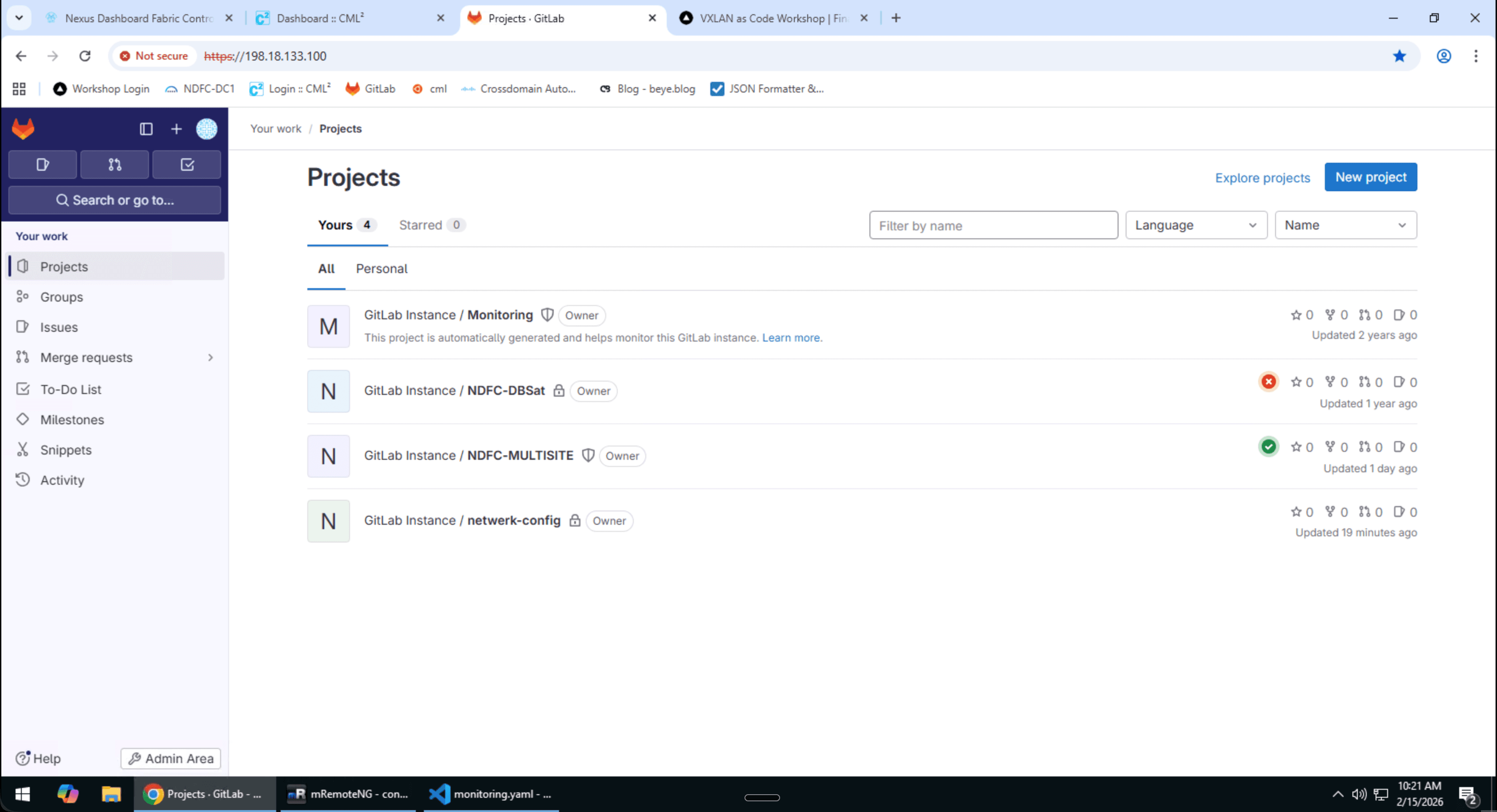
The Left Sidebar
Key Areas Explained
📂 Repository → Files
Here you can see all files in your project. You can edit files directly in the browser, view the history, and switch between branches.
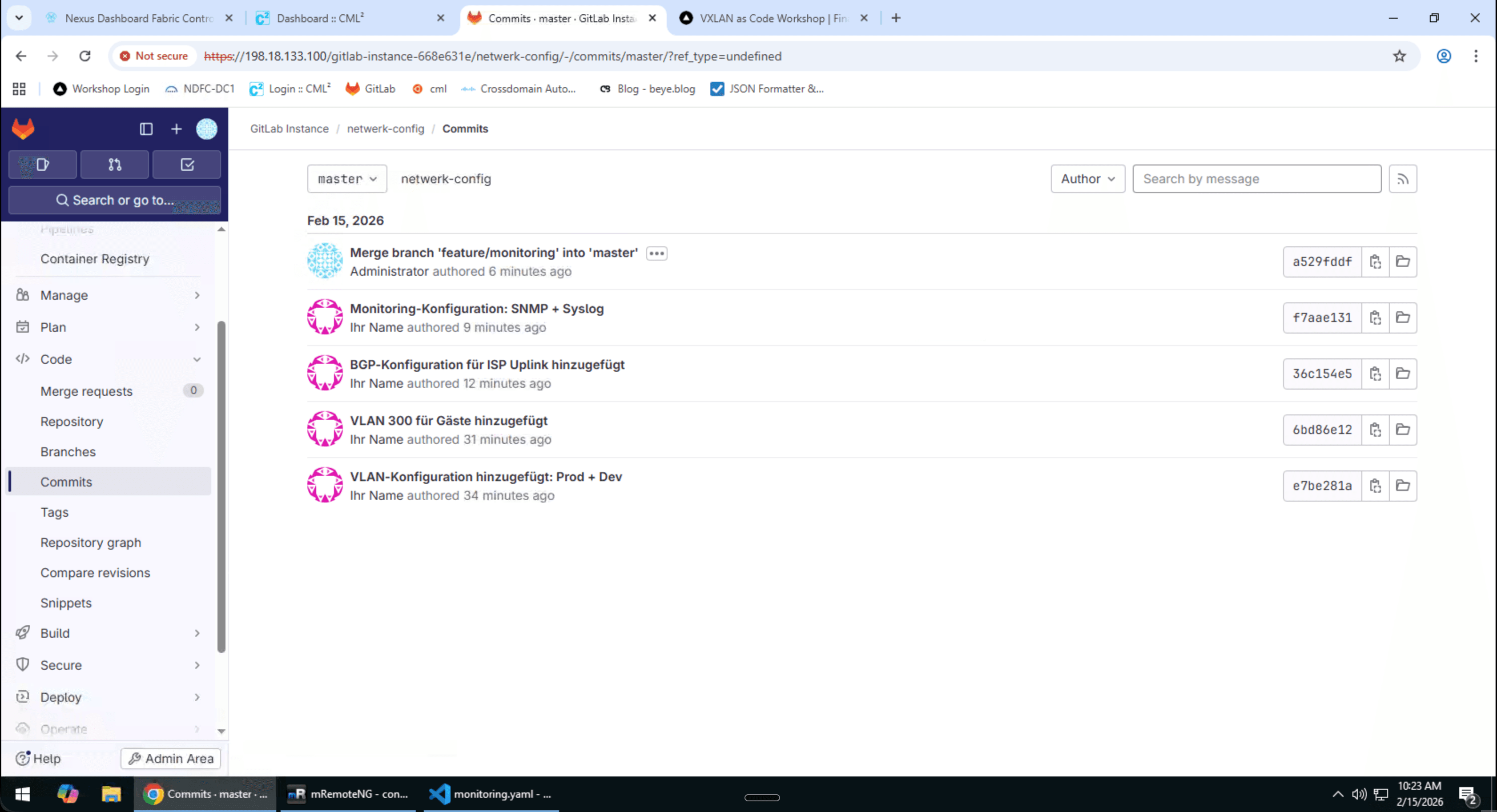
📂 Repository → Branches
Overview of all branches. Shows which branches are active, when the last commit was made, and whether they are protected. You can also create new branches here.
🔀 Merge Requests
All open, merged, and closed Merge Requests. Filter by author, reviewer, labels, or milestone.
⚙️ Settings
Project settings: access rights, Protected Branches, Webhooks, CI/CD variables, Merge Request Approvals, and much more.
Familiarize yourself with the GitLab interface.
- Open GitLab in the browser (URL from the instructor)
- Create a new project:
- Click on
New project - Select
Create blank project - Name:
network-config-YOURNAME - Visibility:
Private - ✅ Enable "Initialize repository with a README"
- Click on
- Explore the project:
- Open
Repository → Files - Check out
Repository → Commits - Open
Settings → General
- Open
- Clone the project:
Open PowerShell and navigate to your Desktop:
cd C:\Users\admin\Desktop # Disable SSL verification (self-signed certificate) git config --global http.sslVerify false # Copy the HTTPS URL from GitLab (Clone button) git clone https://198.18.133.100/gitlab-instance-668e631e/network-config-YOURNAME.git cd network-config-YOURNAME dir⚠️Self-Signed CertificateThe lab GitLab uses a self-signed certificate. The commandgit config --global http.sslVerify falseis necessary so that Git accepts the HTTPS connection.
3. Projects and Groups
GitLab organizes repositories in a hierarchical structure. This is especially important for larger teams.
Understanding the Hierarchy
Why Groups?
👥 Shared Permissions
Permissions are granted at the group level and inherited by all projects.
📊 Overview
All projects of a team in one place. Issues and MRs can be viewed across groups.
🔄 Shared Runners
CI/CD Runners can be defined at the group level and are available to all projects.
🏷️ Shared Labels
Labels, milestones, and variables can be defined at the group level.
Access Levels (Roles)
| Role | Can... | Typical Use |
|---|---|---|
| Guest | View issues, comment | Stakeholders, Management |
| Reporter | Read code, create issues | QA, Support |
| Developer | Push, create MRs, branches | Developers, Network Engineers |
| Maintainer | + Protected Branches, merge MRs | Tech Leads, Senior Engineers |
| Owner | Full control, delete project | Team/Department Leads |
4. Protected Branches
Protected Branches are a security mechanism that prevents critical branches (such as main or production) from being accidentally or maliciously damaged.
main -- and the automated pipeline deploys it immediately to 500 switches. Protected Branches prevent exactly that!What Protected Branches Prevent
🚫 Prohibited
- • Direct push to the branch
- • Force push (overwriting history)
- • Deleting the branch
- • Merging unreviewed changes
✅ Allowed
- • Changes via Merge Requests
- • With required approvals
- • After successful pipeline
- • By authorized maintainers
Protected Branch Settings
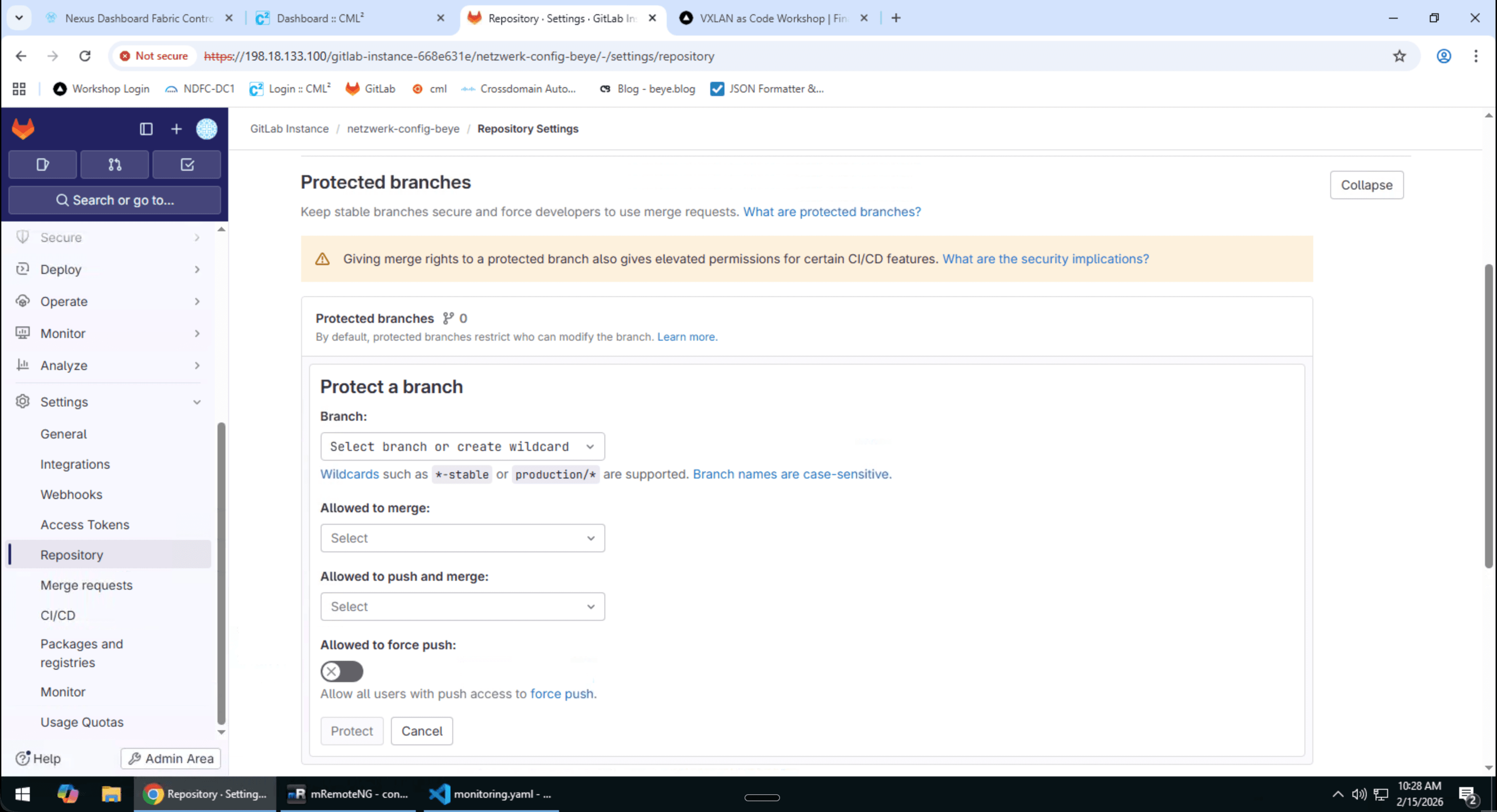
Merge Request Approval Rules
In addition to Protected Branches, you can define Approval Rules:
- Number of Approvals: At least X people must approve
- Code Owners: Certain files require approval from the responsible team
- Eligible Approvers: Only specific people/groups may approve
- Author cannot approve: Enforce the four-eyes principle
Update the existing README with a meaningful project description.
- Edit README.md:
The file
README.mdalready exists in the project foldernetwork-config-YOURNAME(it was created along with the project). Open it in VS Code and replace the content with the following:📄 README.md# Network Configuration This repository contains the network configuration for our VXLAN fabric. ## Structure ``` . ├── inventory/ # Device inventory ├── host_vars/ # Device-specific variables ├── group_vars/ # Group variables (Spines, Leafs) ├── templates/ # Jinja2 templates └── playbooks/ # Ansible Playbooks ``` ## Usage ```bash # Validate configuration ansible-playbook playbooks/validate.yml # Deploy configuration (staging only) ansible-playbook playbooks/deploy.yml -l staging ``` ## Contact Maintainer: YOUR NAME - Commit and push changes (in PowerShell):
git status git add README.md git commit -m "docs: README mit Projektstruktur aktualisiert" git push origin master - Alternative: Commit and push directly in VS Code
You can also commit changes directly via the VS Code Source Control sidebar without using the terminal:
- Click on the Source Control icon on the left (branch symbol, or
Ctrl+Shift+G) - You will see the changed files under "Changes"
- Click on the + next to the file (or "Stage All Changes") to stage it
- Enter a commit message in the text field at the top
- Click the "Commit" button (✓ checkmark)
- Click on "Sync Changes" or the three dots → Push to push to the server
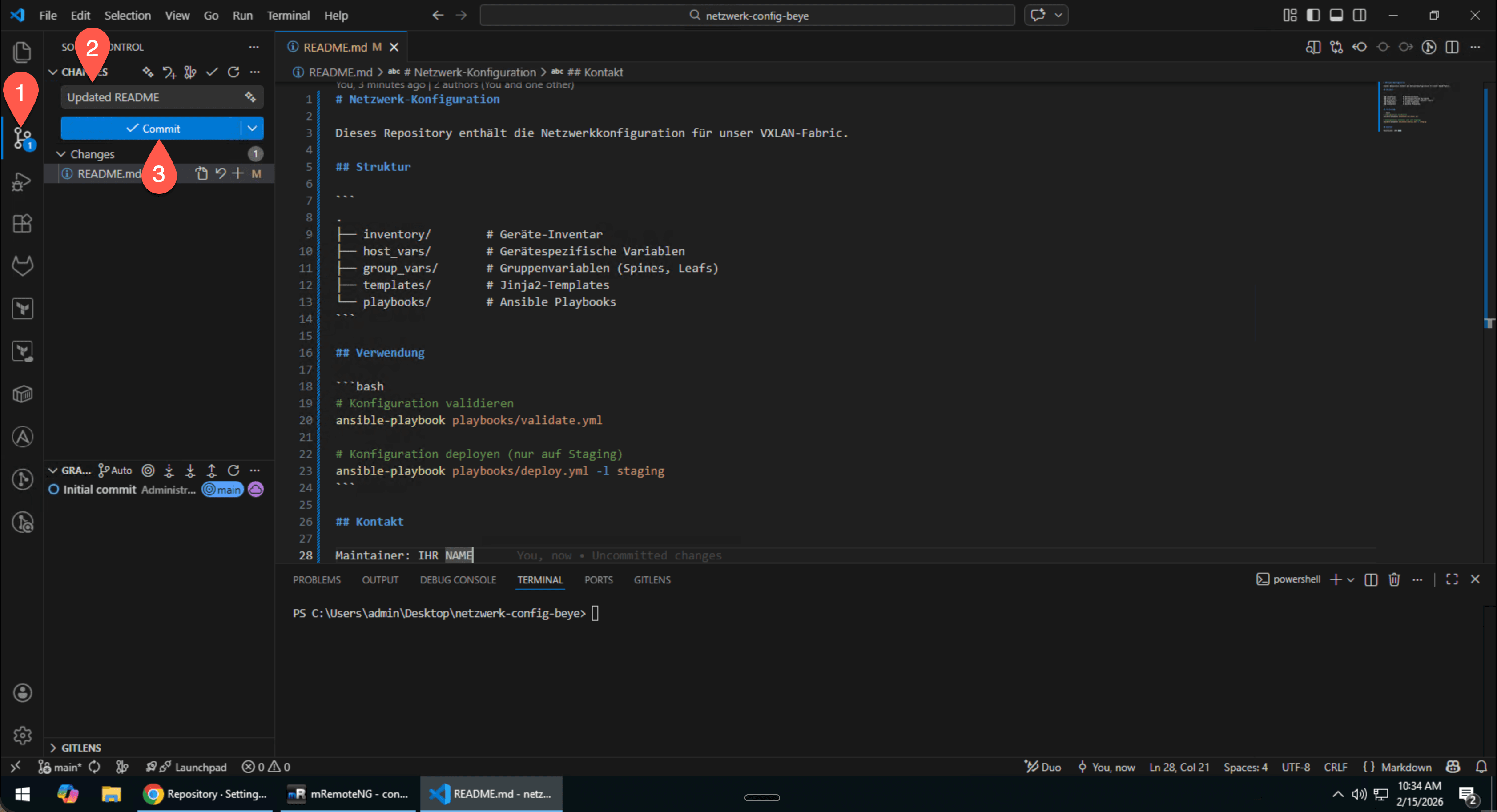 🔍 Enlarge
VS Code Source Control: Stage, commit, and push -- all without the terminal - Click on the Source Control icon on the left (branch symbol, or
- Verify in GitLab: Open your project in the browser and verify that the README is displayed.
Protect your main branch from direct pushes.
- Navigate in GitLab:
- Open your project
- Go to
Settings → Repository - Expand
Protected branches
- Protect the branch:
- Branch:
main - Allowed to merge:
Maintainers - Allowed to push and merge:
No one - Click
Protect
- Branch:
- Test the protection (in PowerShell):
# Try to push directly to main Add-Content -Path README.md -Value "# Test" git add . git commit -m "test: direkter push" git push origin main # Expected result: ERROR! # remote: GitLab: You are not allowed to push code to protected branches - Undo the change:
git reset --hard HEAD~1 - Disable Protected Branch again:
So that we can push directly to
mainagain in the following exercises, remove the branch protection:- Go to
Settings → Repository → Protected branches - Click Unprotect next to
main - Confirm the action
- Go to
git reset --hard HEAD~1 to continue the workflow correctly.5. The Merge Request Workflow in Detail
A Merge Request (MR) is like a formal change request. Instead of applying changes directly, you propose them -- and colleagues review them before they go live.
The Phases of a Merge Request
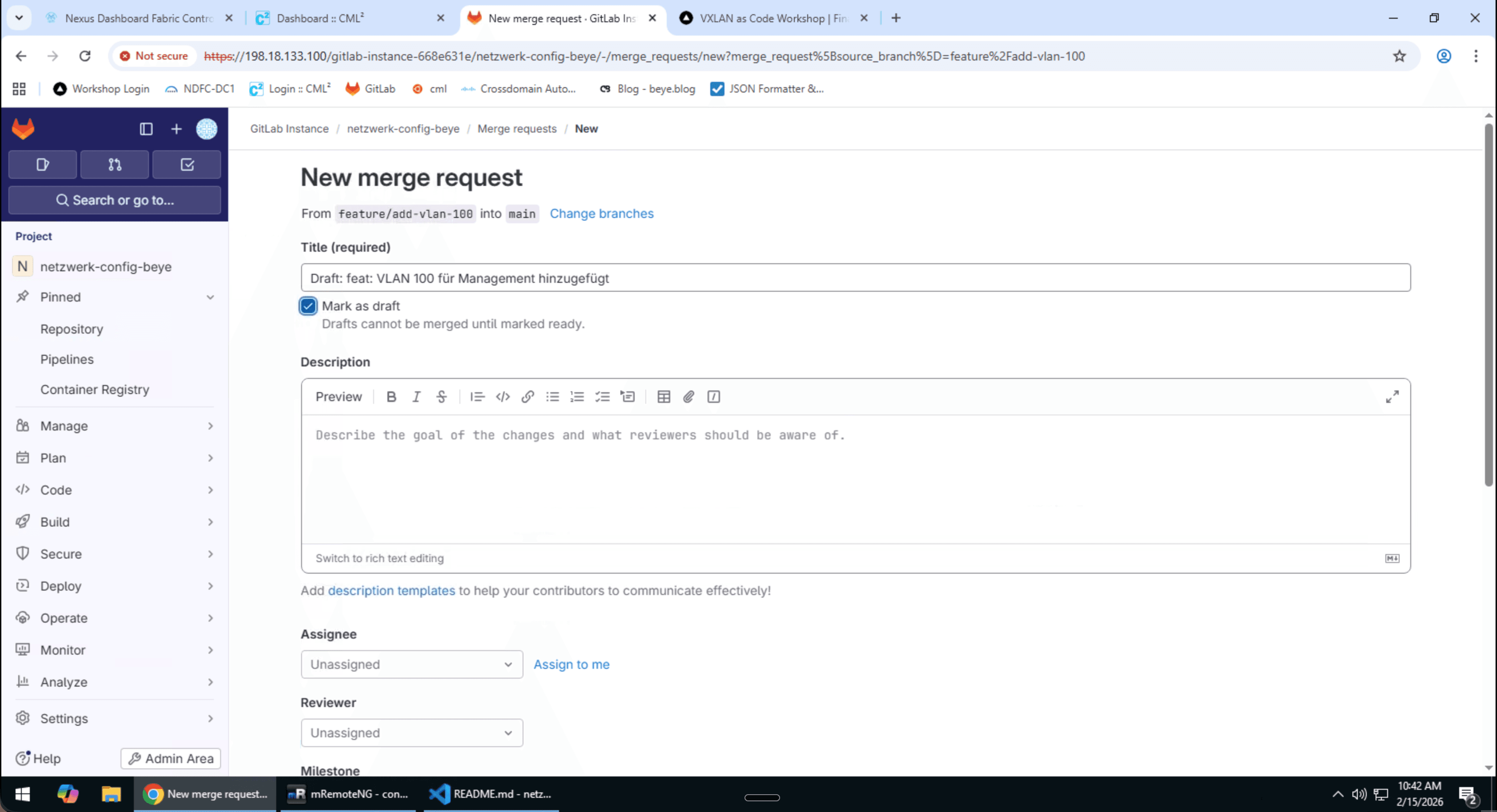
Phase 1: Draft Merge Request
A Draft MR signals: "I am still working on this, please do not review yet!" -- perfect for work-in-progress.
# Create and push feature branch
git checkout -b feature/add-vlan-100
New-Item -ItemType Directory -Force -Path vlans
Set-Content -Path vlans/vlan100.yaml -Value "vlan_id: 100`nname: Management"
git add .
git commit -m "feat: VLAN 100 für Management hinzugefügt"
git push -u origin feature/add-vlan-100In GitLab:
- Click on
Create merge request - Select "Mark as draft" (or prefix the title with "Draft:")
- Add a description of what is still missing
- When you need feedback before everything is finished
- When the pipeline is still red
- When you want to track the MR as a TODO for yourself
- When you are working on a feature over several days
Phase 2: Mark MR as Ready for Review
When your work is complete, remove the draft status:
- Click on "Mark as ready"
- Assign a Reviewer (dropdown on the right)
- Optional: Set a Label (e.g. "needs-review")
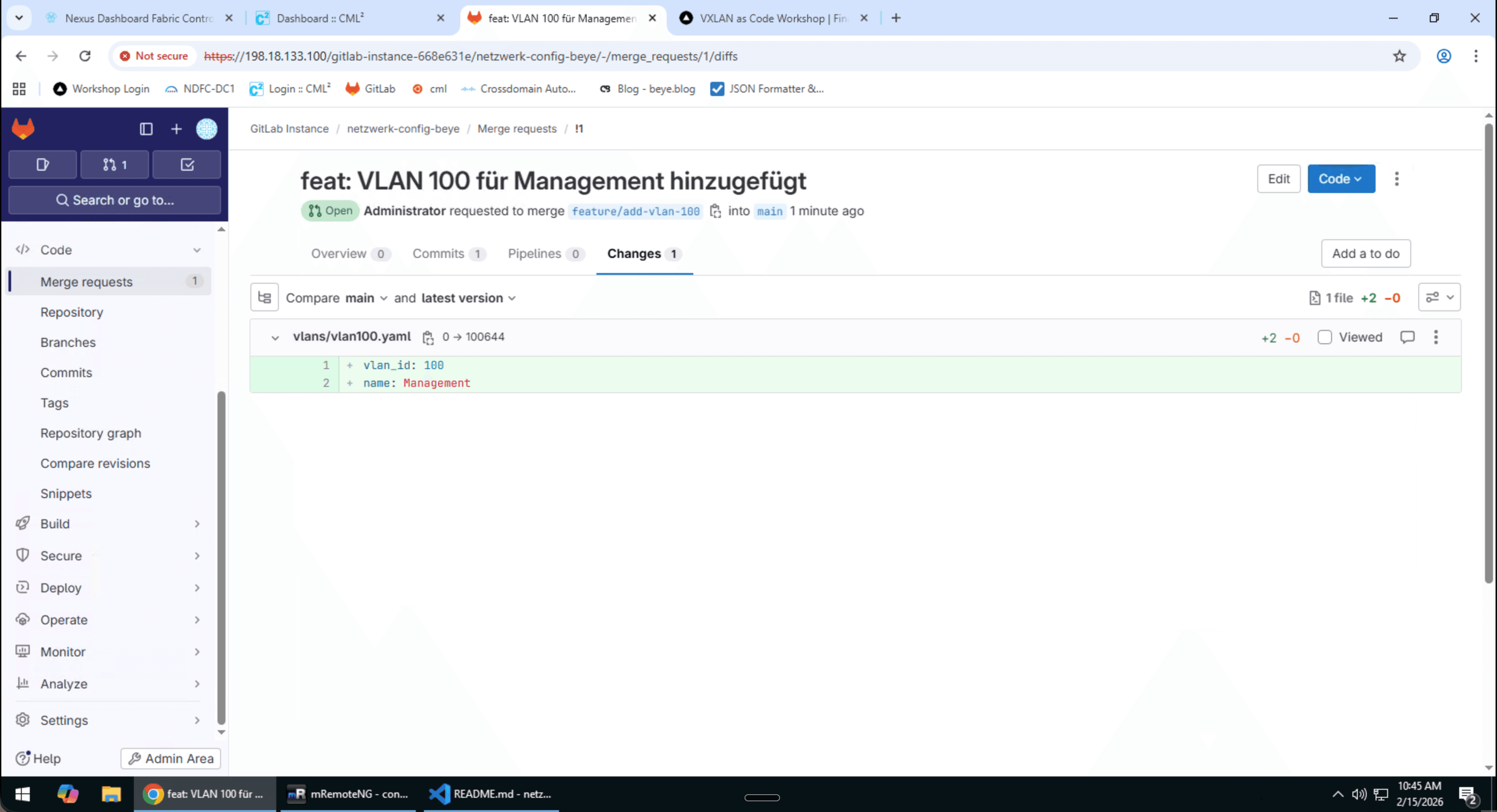
Phase 3: Code Review
The reviewer examines your changes. In GitLab they can:
💬 Comments
Ask questions or suggest improvements on individual lines.
💡 Suggestions
Propose concrete code changes that the author can apply with a single click.
🧵 Threads
Discussions on individual points. Must be "resolved" before merging.
✅ Approve
Formal approval: "I have reviewed this, it can be merged."
Phase 4: Approval
After all comments have been addressed and threads resolved, the reviewer clicks "Approve". Depending on the configuration, multiple approvals may be required.
Phase 5: Merge
When all conditions are met (approvals, pipeline green, no open threads), the MR can be merged:
Merge Options
- Merge -- All commits are included (default)
- Squash and merge -- All commits are combined into one
- Delete source branch -- Delete the feature branch after merge (recommended)
Create a complete Merge Request.
- Create a feature branch (in PowerShell):
cd netzwerk-config-IHRNAME git checkout main git pull origin main git checkout -b feature/add-vlan-200 # Create directory New-Item -ItemType Directory -Force -Path vlansCreate a new file
vlans/vlan200.yamlin VS Code with the following content:📄 vlans/vlan200.yaml--- vlan: id: 200 name: Clients description: "Client-Netzwerk für Arbeitsplätze" ip_range: "10.200.0.0/24" gateway: "10.200.0.1" dhcp_enabled: trueThen commit and push:
git add . git commit -m "feat: VLAN 200 für Client-Netzwerk" git push -u origin feature/add-vlan-200 - Create MR in GitLab:
- Click the link in the push output OR
- Go to
Merge requests → New merge request - Source:
feature/add-vlan-200 - Target:
main
- Fill in the MR:
- Title: "feat: VLAN 200 für Client-Netzwerk hinzufügen"
- Description: What, why, how to test?
- Reviewer: Leave the field empty or assign yourself (in practice, you would assign a colleague as reviewer)
6. Code Review Best Practices
Code Reviews are the four-eyes principle for configurations. Here are the most important rules for effective reviews.
For the Author (You create the MR)
✅ Do
- • Small, focused MRs (max. 200-400 lines)
- • Descriptive commit messages
- • Good description: What? Why? How to test?
- • Self-review before assigning
- • Screenshots/logs for UI/output changes
❌ Don't
- • Huge MRs with 20+ files
- • Multiple independent features in one MR
- • Empty description ("fixes stuff")
- • Assigning reviewer without context
For the Reviewer (You review the MR)
✅ Do
- • Be constructive, not critical
- • Ask questions instead of giving orders
- • Give positive feedback ("Great solution!")
- • Suggestions instead of just comments
- • Review promptly (<24h)
❌ Don't
- • Get personal
- • Just "LGTM" without real review
- • Make style issues a blocker
- • Leave it waiting for weeks
What to Check? Checklist for Network Configurations
- ☐ Syntax correct? (YAML, Jinja2, etc.)
- ☐ Naming conventions? (VLANs, interfaces, etc.)
- ☐ IP addresses/ranges correct? (no overlap)
- ☐ Security? (no secrets in code, ACLs correct)
- ☐ Dependencies? (order, references)
- ☐ Documentation? (comments, README up to date)
- ☐ Tests? (pipeline green, validation successful)
Comment Conventions
Use prefixes to indicate importance:
| Prefix | Meaning | Example |
|---|---|---|
| blocker: | Must be fixed | blocker: This IP is already in use! |
| suggestion: | Improvement suggestion | suggestion: VLAN name could be more descriptive |
| question: | Question/needs clarification | question: Why /24 instead of /23? |
| nit: | Minor issue, not a blocker | nit: Trailing whitespace |
| praise: | Kudos! | praise: Very clean structure! 👍 |
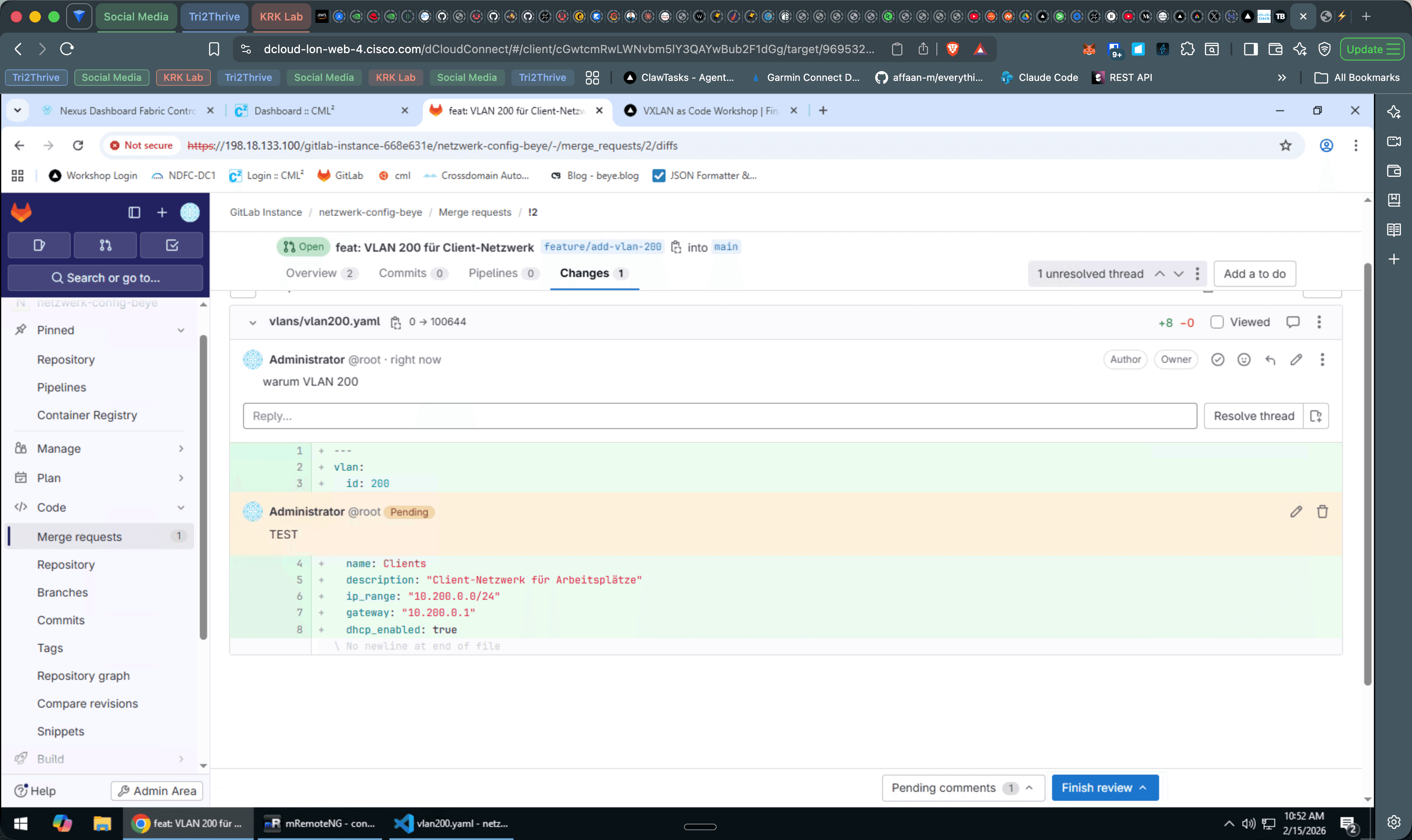
Practice the Code Review workflow by reviewing your own Merge Request. In practice, a colleague would perform this review -- here you learn the tools and features.
- Open your MR:
- Go to
Merge requests - Open your MR from Exercise 4
- Switch to the
Changestab
- Go to
- Leave comments:
- Click on a line to leave a comment
- Add at least 3 comments with different prefixes:
question: Why /24 instead of /23 for the client network?nit: VLAN name could be more descriptivepraise: Clean YAML structure! 👍
- Create a suggestion:
- Create a new comment on a code line
- Click on the
Suggestionicon (💡) - Write a concrete change proposal in the code block
- E.g. change the VLAN name from "Clients" to "Client-Workstations"
- Respond to comments and resolve threads:
- Reply to your own comments (e.g. "Good point, will be adjusted")
- For the suggestion: Click
Apply suggestion - Resolve all addressed threads via the
Resolve threadbutton
Complete the review process by approving and merging your own MR.
- Approve your own MR:
- Open your MR from Exercise 4
- Make sure all threads are resolved
- Click on
Approve
ℹ️Self-Approval in the WorkshopAs a root/admin user, you can approve your own MR. In a production environment, this would be prevented by approval rules -- there, another colleague must approve the MR (four-eyes principle). - Merge the MR:
- Click on
Merge - Option: Enable
Delete source branch
- Click on
- Update locally (in PowerShell):
git checkout main git pull origin main # Verify that the changes are there dir vlans/ Get-Content vlans/vlan200.yaml - Verify in GitLab:
- The MR shows status
Merged - The feature branch was deleted
- The file
vlans/vlan200.yamlis visible onmain
- The MR shows status
7. GitLab Issues and Boards
Issues are the task management in GitLab. They track bugs, features, tasks, and everything that needs to be done.
Issue Anatomy
Issue Templates
Templates ensure consistent issues. Create.gitlab/issue_templates/ in your repo:
## Description
<!-- What should be changed? -->
## Affected Devices/VLANs
- [ ] Switches
- [ ] Routers
- [ ] Firewalls
- [ ] VLANs:
## Planned Changes
```yaml
# Example configuration
```
## Rollback Plan
<!-- How to roll back if something goes wrong? -->
## Checklist
- [ ] Change request approved
- [ ] Tested on staging
- [ ] Maintenance window planned
- [ ] Rollback plan documentedIssue Boards
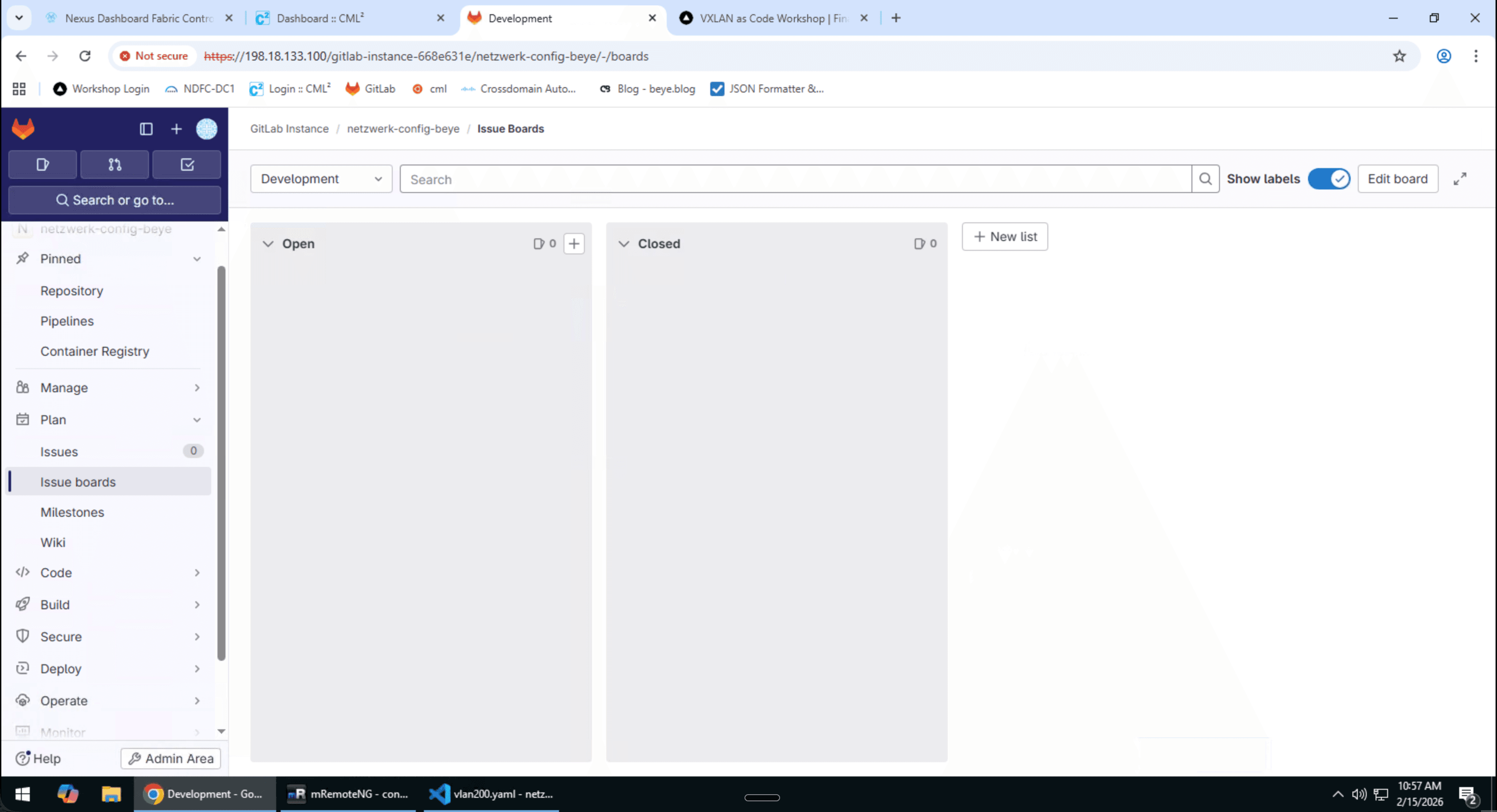
Boards are Kanban views of your issues. They help visualize the work progress.
Linking Issues with Merge Requests
Link MRs with issues to enable automatic closing:
# In the MR description or commit message:
Closes #42
Fixes #42
Resolves #42
# Multiple issues:
Closes #42, #43, #44
# Link only (without closing):
Related to #42Create an issue and resolve it with a Merge Request.
- Create an issue:
- Go to
Issues → New issue - Title: "Set up VLAN 300 for Guest WiFi"
- Description:
## Requirement Guest WiFi needs its own VLAN with internet access. ## Technical Details - VLAN ID: 300 - Name: Guest-WiFi - IP Range: 10.30.0.0/24 - Gateway: 10.30.0.1 ## Acceptance Criteria - [ ] VLAN configured - [ ] Gateway reachable - [ ] Internet access working - Add a label:
feature - Note the issue number (e.g. #1)
- Go to
- Feature branch with issue reference (in PowerShell):
git checkout main git pull origin main git checkout -b feature/issue-1-vlan-300Create a new file
vlans/vlan300.yamlin VS Code:📄 vlans/vlan300.yaml--- vlan: id: 300 name: Guest-WiFi description: "Gäste-WLAN mit Internet-Zugang" ip_range: "10.30.0.0/24" gateway: "10.30.0.1" dhcp_enabled: true internet_access: true internal_access: falseThen commit and push:
git add . git commit -m "feat: VLAN 300 für Gäste-WLAN Closes #1" git push -u origin feature/issue-1-vlan-300 - Create MR:
- In the description:
Closes #1 - Verify that the issue is shown as linked
- In the description:
- Merge MR and check issue:
- After the merge: Open the issue
- It should be automatically closed!
8. CI/CD Pipeline Fundamentals
A pipeline is like an assembly line in a factory: With every new commit, a series of steps runs automatically -- test, validate, deploy.
What Does CI/CD Mean?
CI -- Continuous Integration
Tests are automatically run with every push. Errors are detected immediately, not only in production.
CD -- Continuous Delivery/Deployment
Changes are automatically deployed to staging/production. Either manually approved (Delivery) or fully automated (Deployment).
Assigning a Runner to a Project
- Navigate to Settings → CI/CD → Runners
- Under "Available specific runners" you will see the available runners
- Click "Enable for this project" for each runner
- Shell Runner (Tag:
shell) — executes jobs directly on the server - Docker Runner (Tag:
docker) — executes jobs in Docker containers (for jobs withimage:)
A Simple Pipeline
# GitLab CI/CD Pipeline für Netzwerk-Konfiguration
stages:
- validate # Stage 1: Check
- test # Stage 2: Test
- deploy # Stage 3: Deploy
# Job 1: Check YAML syntax
validate-yaml:
stage: validate
image: python:3.11-slim
tags: [docker]
before_script:
- pip install yamllint
script:
- echo "🔍 Prüfe YAML-Syntax..."
- yamllint vlans/
rules:
- if: $CI_PIPELINE_SOURCE == "merge_request_event"
- if: $CI_COMMIT_BRANCH == "main"
# Job 2: Validate configuration against schema
validate-schema:
stage: validate
image: python:3.11-slim
tags: [docker]
before_script:
- pip install jsonschema pyyaml
script:
- echo "📋 Prüfe gegen Schema..."
- python scripts/validate_schema.py
rules:
- if: $CI_PIPELINE_SOURCE == "merge_request_event"
# Job 3: Deploy to staging (only for MR)
deploy-staging:
stage: deploy
tags: [shell]
script:
- echo "🚀 Deploye auf Staging..."
- ansible-playbook -i staging playbooks/deploy.yml
environment:
name: staging
rules:
- if: $CI_PIPELINE_SOURCE == "merge_request_event"
when: manual # Manual click required
# Job 4: Deploy to production (only main)
deploy-production:
stage: deploy
tags: [shell]
script:
- echo "🚀 Deploye auf Produktion..."
- ansible-playbook -i production playbooks/deploy.yml
environment:
name: production
rules:
- if: $CI_COMMIT_BRANCH == "main"
when: manual # Safety: Manual click
needs:
- validate-yamlPipeline Concepts
| Concept | Description |
|---|---|
| Stages | Phases of the pipeline (run sequentially) |
| Jobs | Individual tasks (run in parallel within a stage) |
| Runner | The machine/container that executes jobs |
| Tags | Labels that determine which runner executes a job (e.g. shell, docker) |
| Artifacts | Files passed between jobs |
| Variables | Environment variables (secrets, configuration) |
| Rules | Conditions for when a job runs |
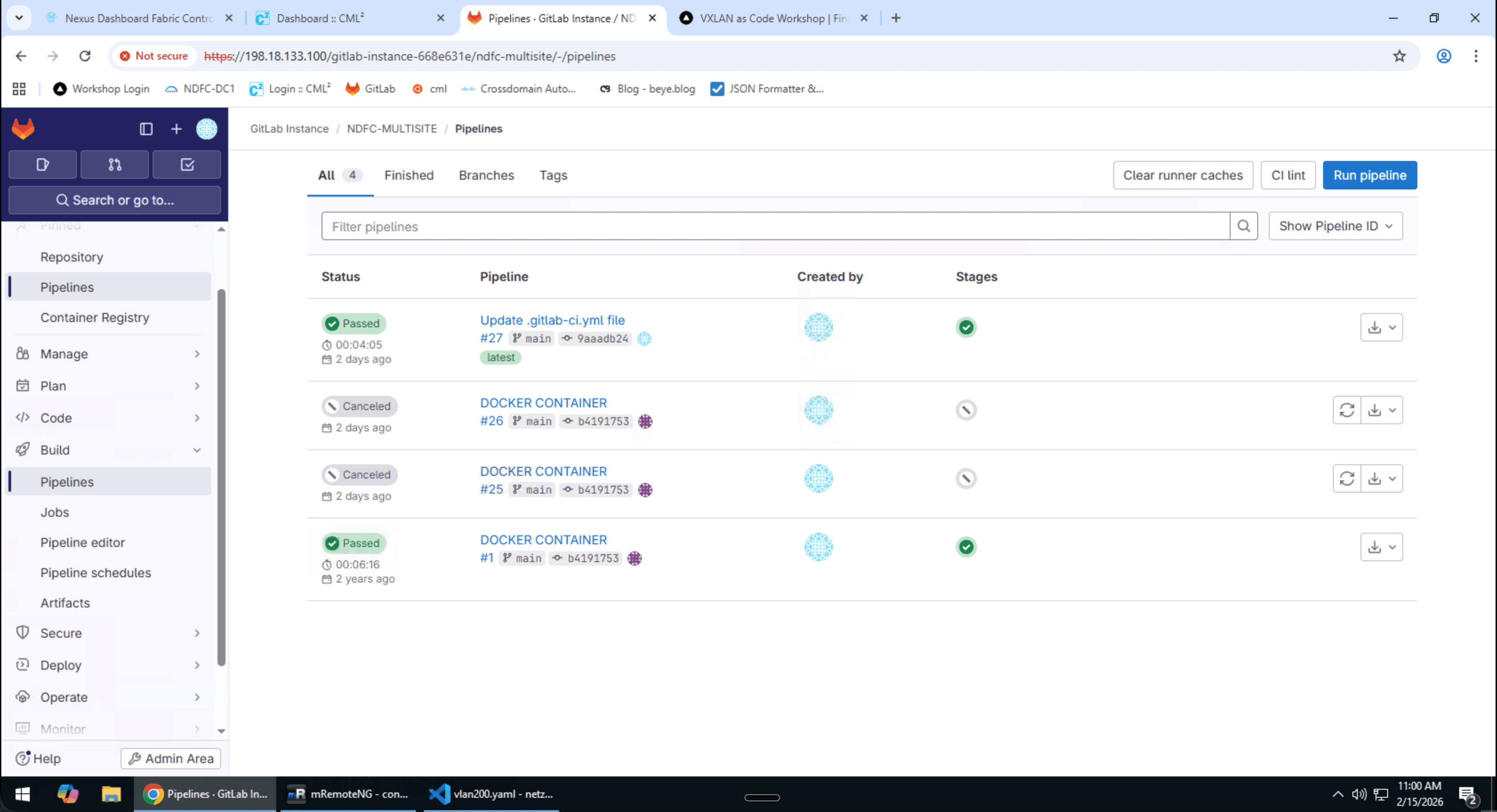
Pipeline Status in the MR
In the Merge Request, you can see the pipeline status:
main.Settings → Merge requests → Merge checks:
✅ "Pipelines must succeed"
❓ Quiz: Test Your GitLab Knowledge (5 Min)
Try to answer the questions without scrolling back.
1. What is the difference between Git and GitLab?
Show Answer
Git is the version control system (command line, local).GitLab is a web platform that extends Git with features like Merge Requests, CI/CD pipelines, issue tracking, and a container registry.
2. What does a Protected Branch do?
Show Answer
A Protected Branch prevents developers from pushing directly to or deleting that branch. Changes must be submitted via Merge Requests and reviewed and merged by authorized personnel.
3. What is a Merge Request and why is it important?
Show Answer
A Merge Request is a formal change request. It shows all changes from a feature branch and enables code review by colleagues. Only after approval are the changes merged into the main branch. This is the four-eyes principle for code.
4. Describe the typical GitLab workflow in 4 steps.
Show Answer
1. Create a branch (git checkout -b feature/my-feature)
2. Commit and push changes (git push origin feature/my-feature)
3. Create a Merge Request in GitLab (with description and reviewer)
4. Review and Merge -- Colleague reviews, gives approval, MR is merged
5. What is the GitLab Container Registry and what is it used for?
Show Answer
The Container Registry is a private storage for Docker images directly in GitLab. CI/CD pipelines can store images there and retrieve them for later jobs. This keeps images close to the code and under your control.
Summary
✅ What You Have Learned
- ☑️ Navigate the GitLab interface
- ☑️ Understand projects and groups
- ☑️ Set up Protected Branches
- ☑️ Create Merge Requests
- ☑️ Perform Code Reviews
- ☑️ Use Issues and Boards
- ☑️ Link Issues with MRs
- ☑️ Understand CI/CD Pipelines
🔑 Key Takeaways
- Merge Requests = Controlled changes with review
- Protected Branches = Safety net for critical branches
- Code Reviews = Quality assurance through the four-eyes principle
- CI/CD = Automated validation and deployment
- Issues = Structured task management
📋 GitLab Cheat Sheet
# Disable SSL verification (self-signed certificate)
git config --global http.sslVerify false
# Clone project
git clone https://198.18.133.100/group/project.git
# Create feature branch
git checkout -b feature/my-feature
git push -u origin feature/my-feature
# After changes
git add .
git commit -m "feat: Description of the change"
git push
# Update branch with main
git checkout main
git pull origin main
git checkout feature/my-feature
git merge main # or: git rebase main